This blog post is going to be a bit different from the others. We will take a quick walk through ThinkRail’s
Graphical User Interface. Below, you will find ThinkRail’s graphical components, grouped into the chat, the workspace
around it, and the settings. For each component, there is a screenshot with the most important visual elements
highlighted, plus a one-sentence description of the component’s purpose. Click a screenshot to see it in full size.
In addition, if we have already published a separate blog post about the given feature, there is a link to it.
|
|
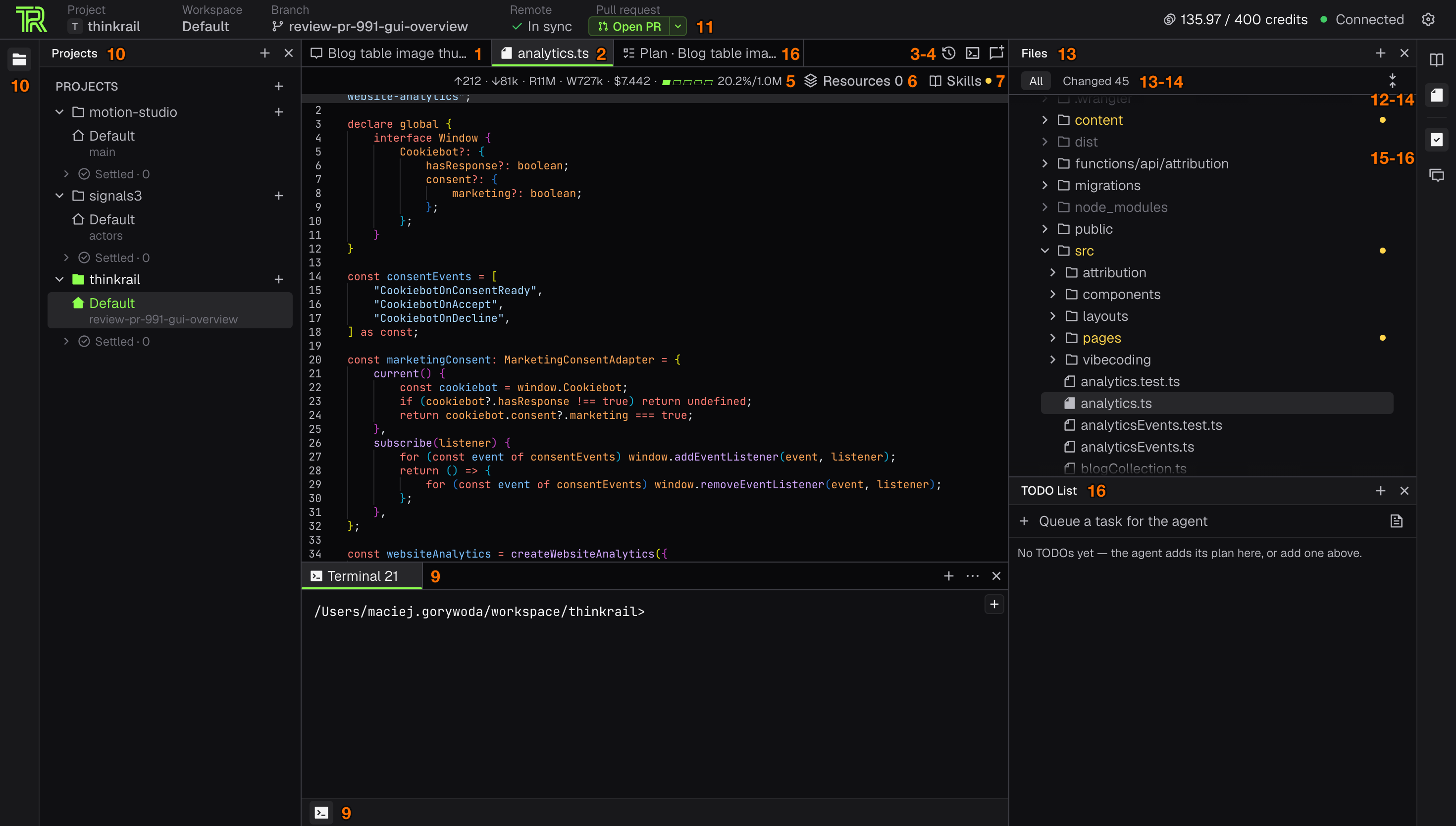
| The main GUI |
 |
Please note that ThinkRail is still in development. This blog post discusses features and their visual elements
as they appear in version 0.3.0 (Nightly) on October 27, 2026. If you are reading this a few months later,
your experience may differ.
The chat
|
|
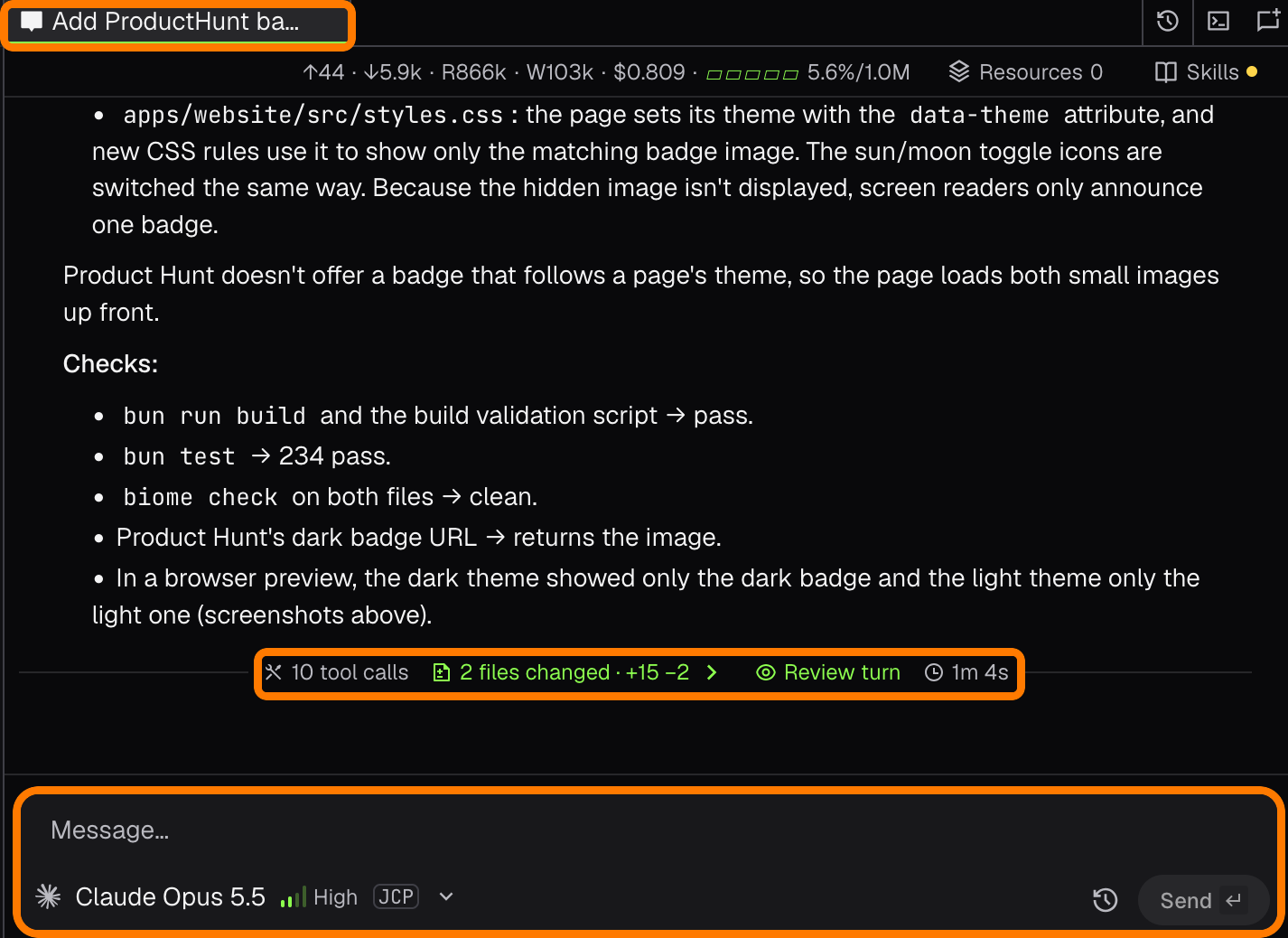
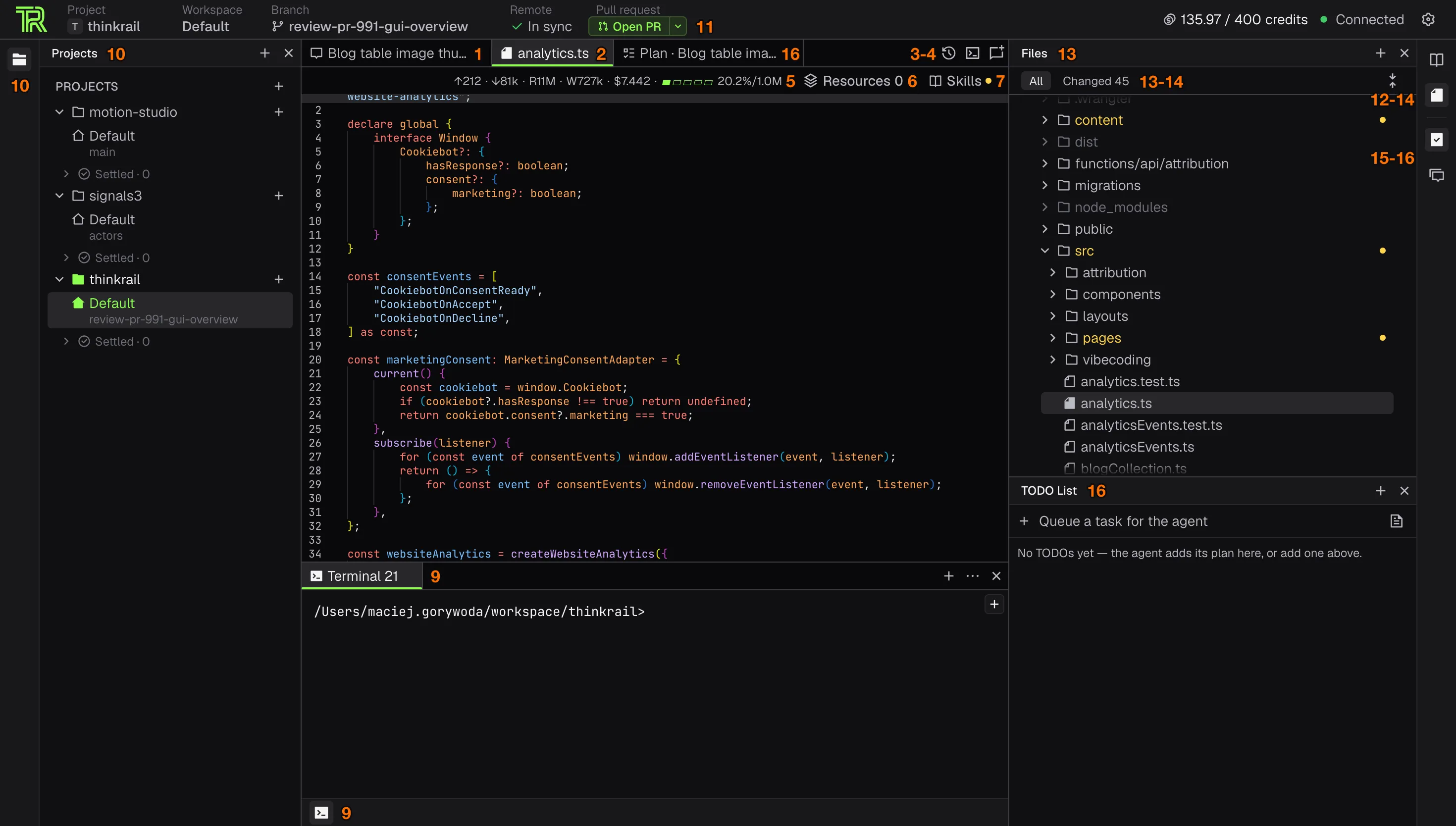
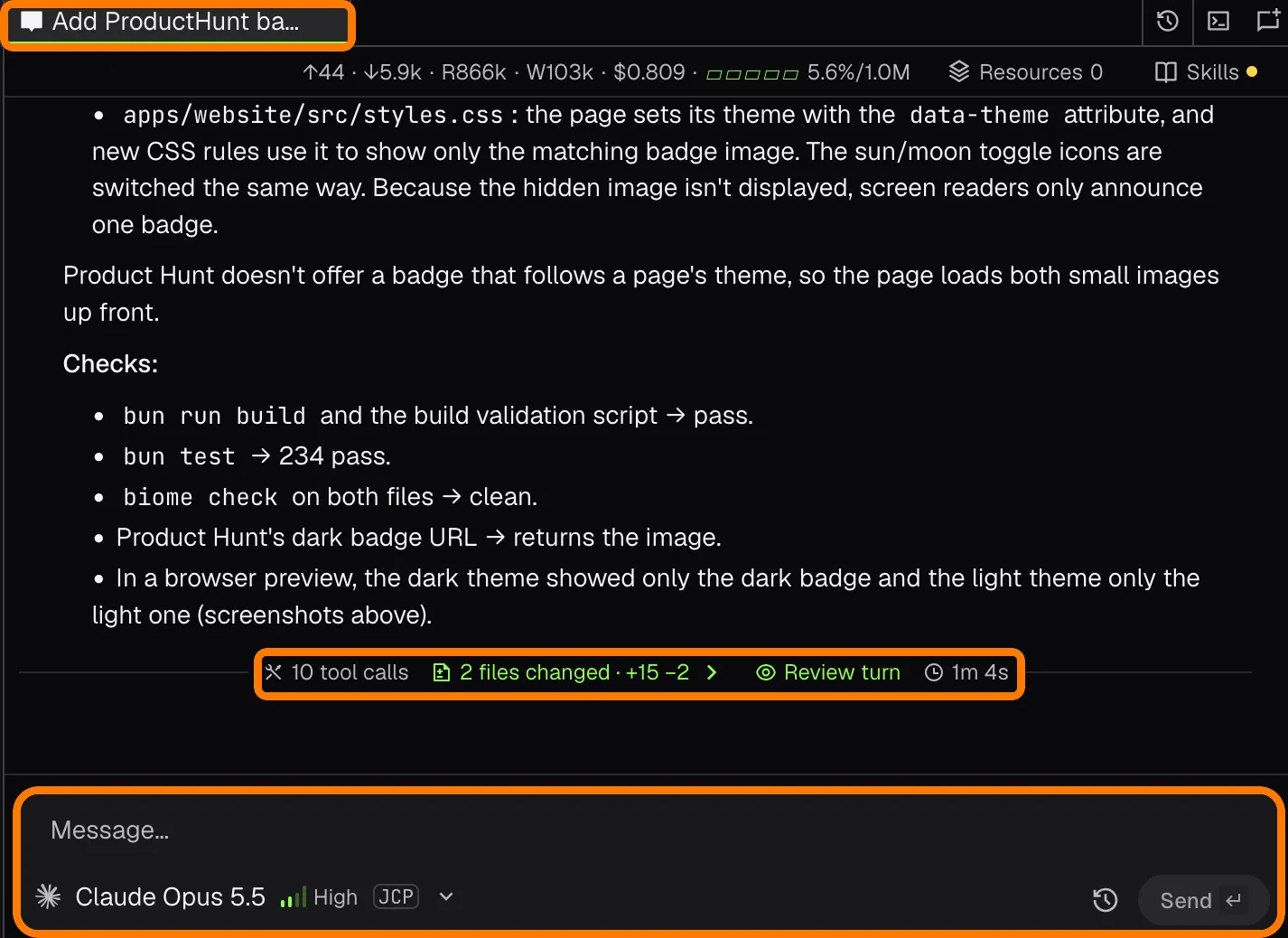
| 1. The chat tab where you talk with the AI agent. A turn that changed files ends with a summary and a Review turn button (ThinkRail 0.2.0). |
 |
|
|
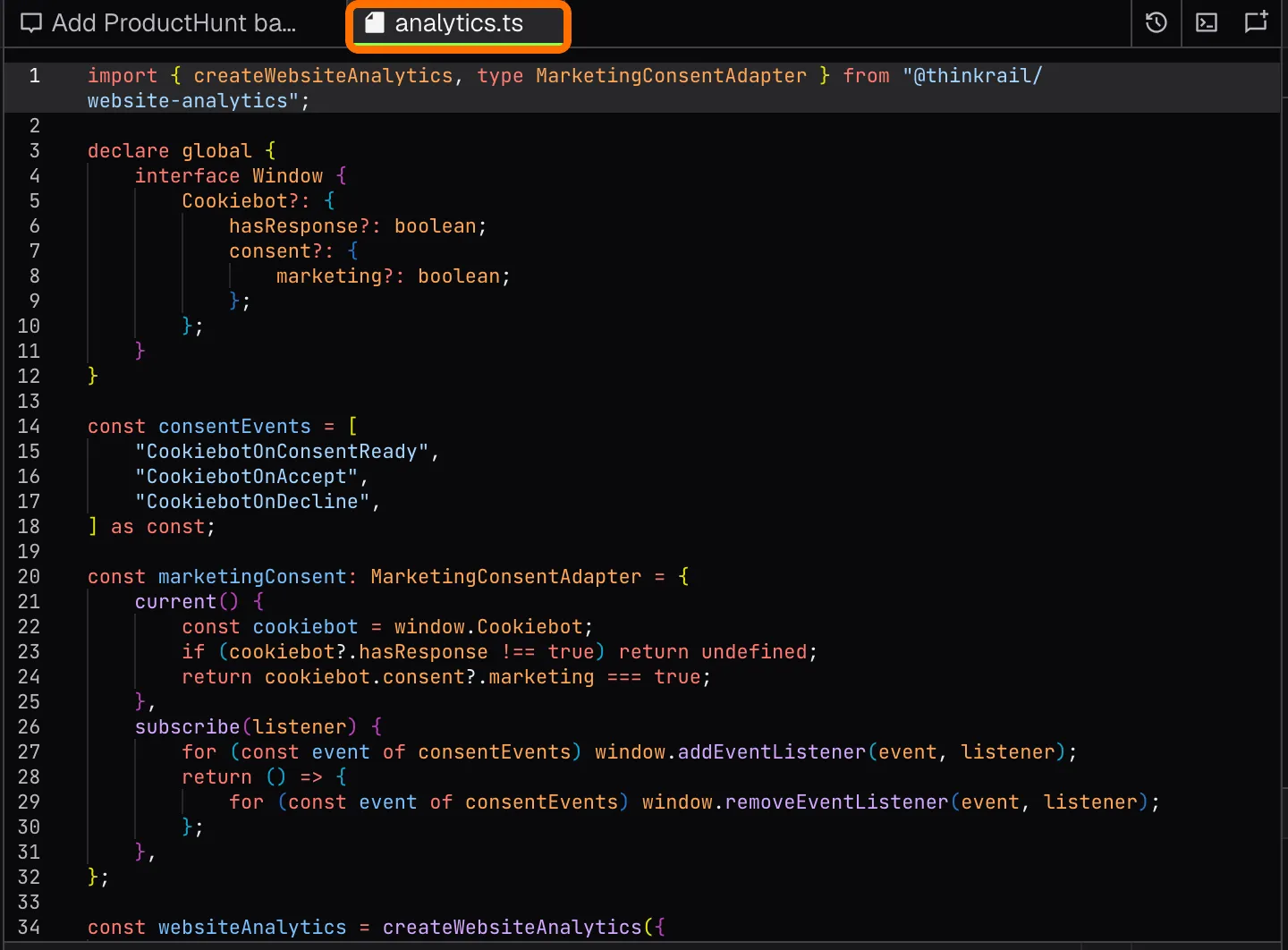 |
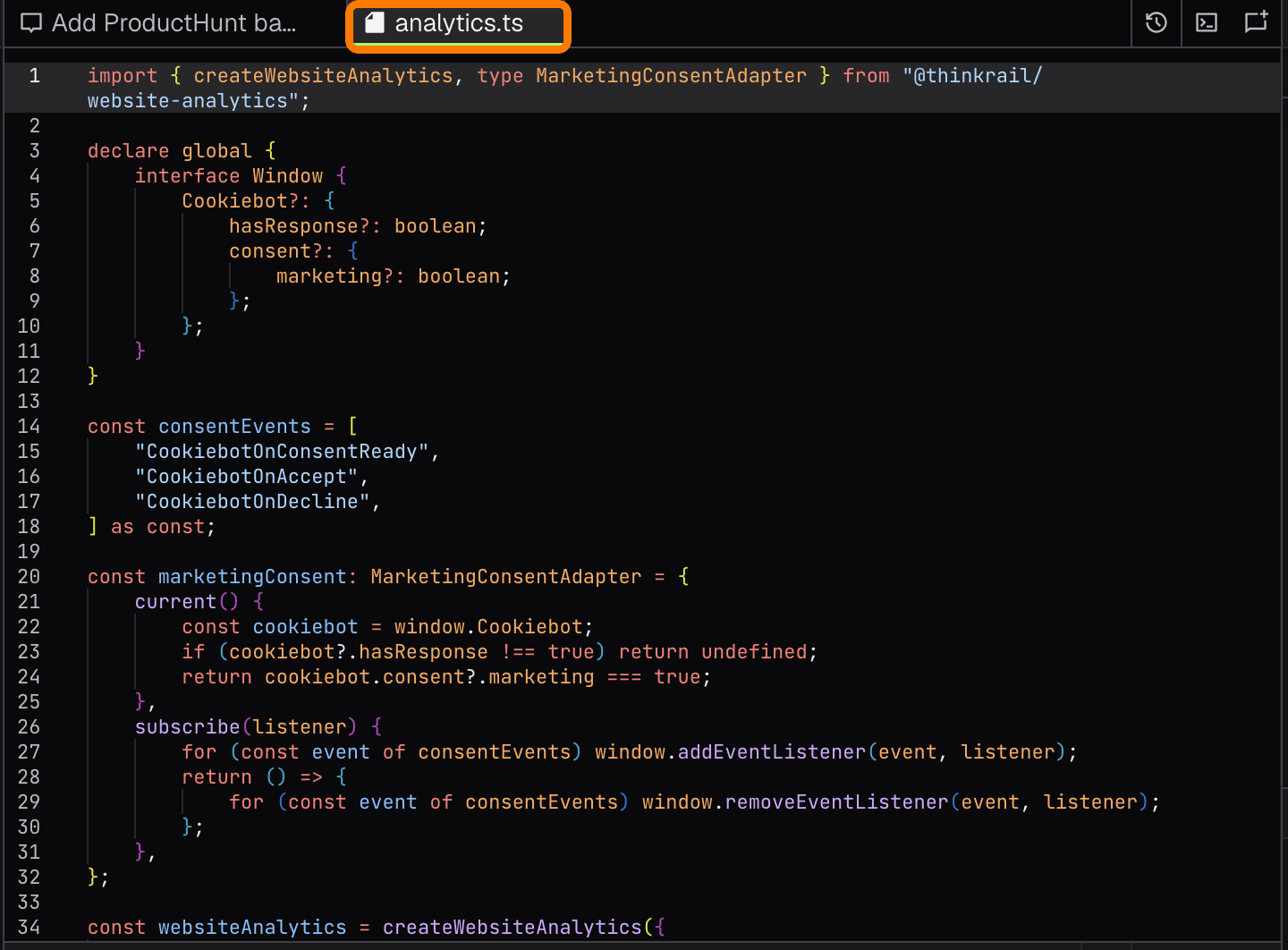
2. A read-only file tab in the same window, where you can read the code your agent wrote. |
|
|
| 3. The chat history popup, where you can reopen, rename, or delete previous conversations. |
 |
|
|
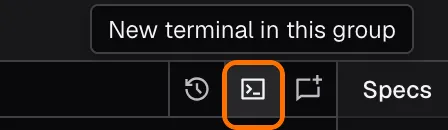 |
4. A button that opens a new terminal as a tab next to your chats. |
|
|
| 5. Token usage of the current chat: input, output, cache reads and writes, cost, and how full the context window is. |
 |
|
|
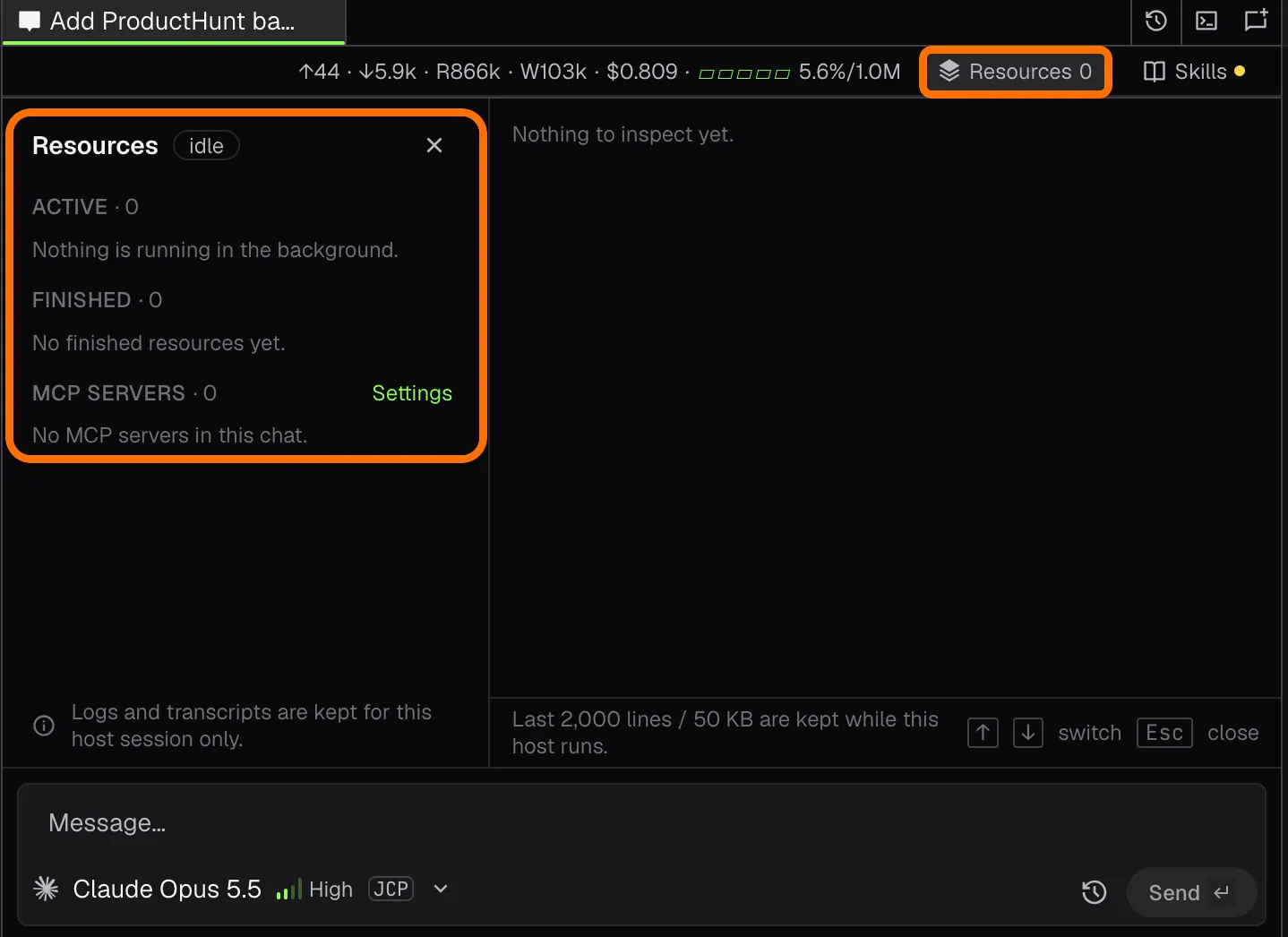 |
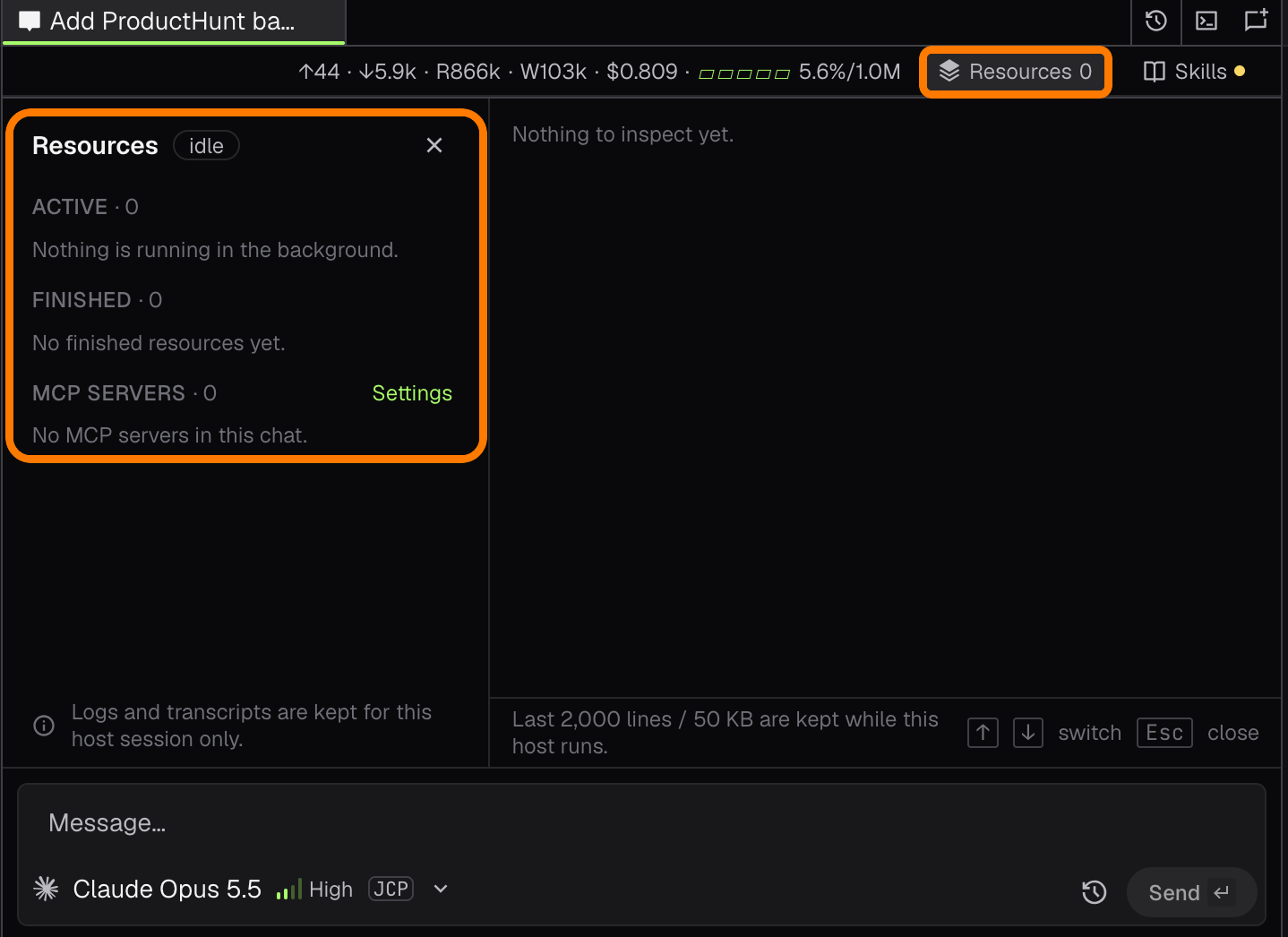
6. The Resources popup, where you can follow the background commands and subagents your agent started, and the MCP servers the chat uses. |
|
|
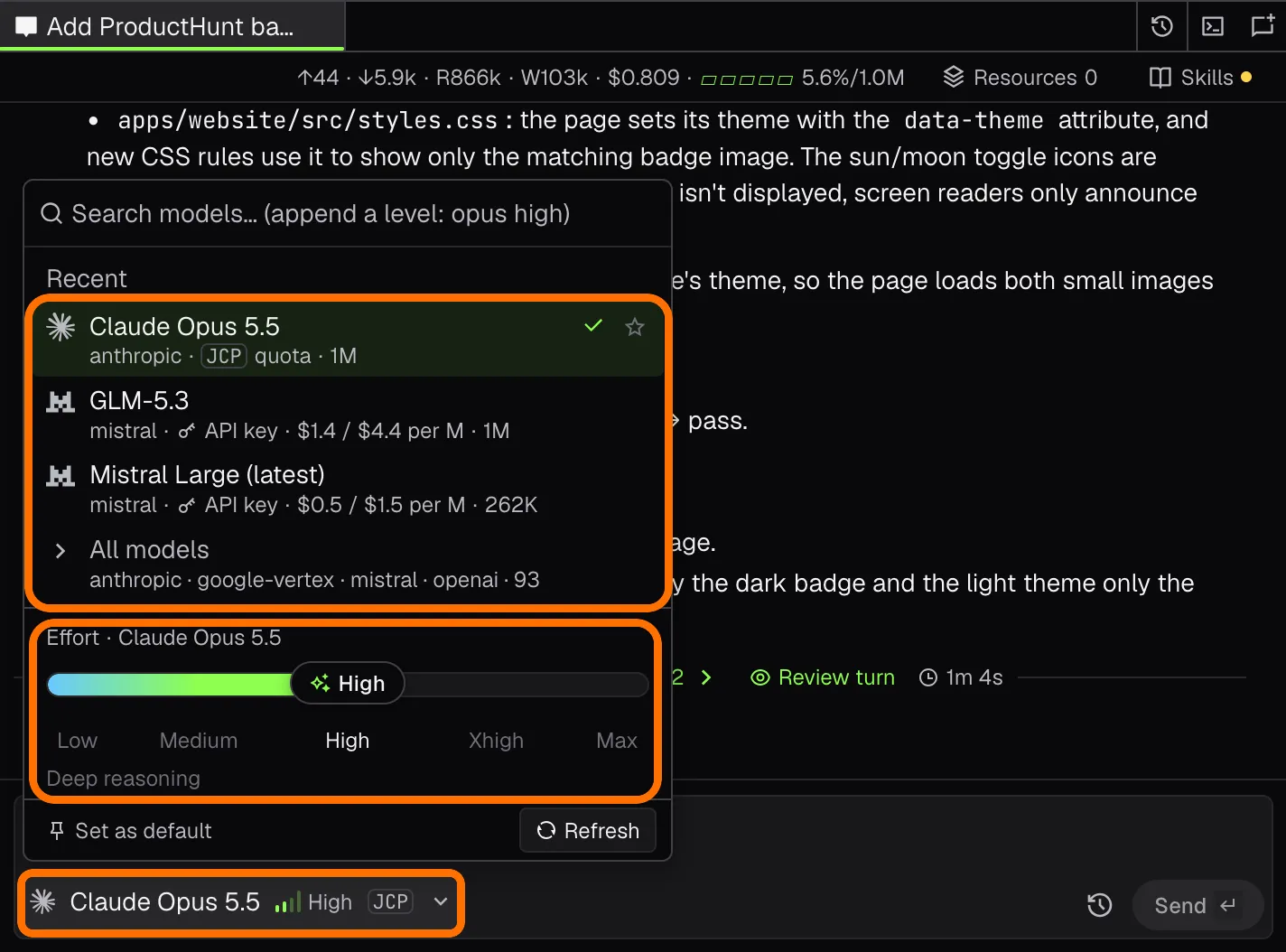 |
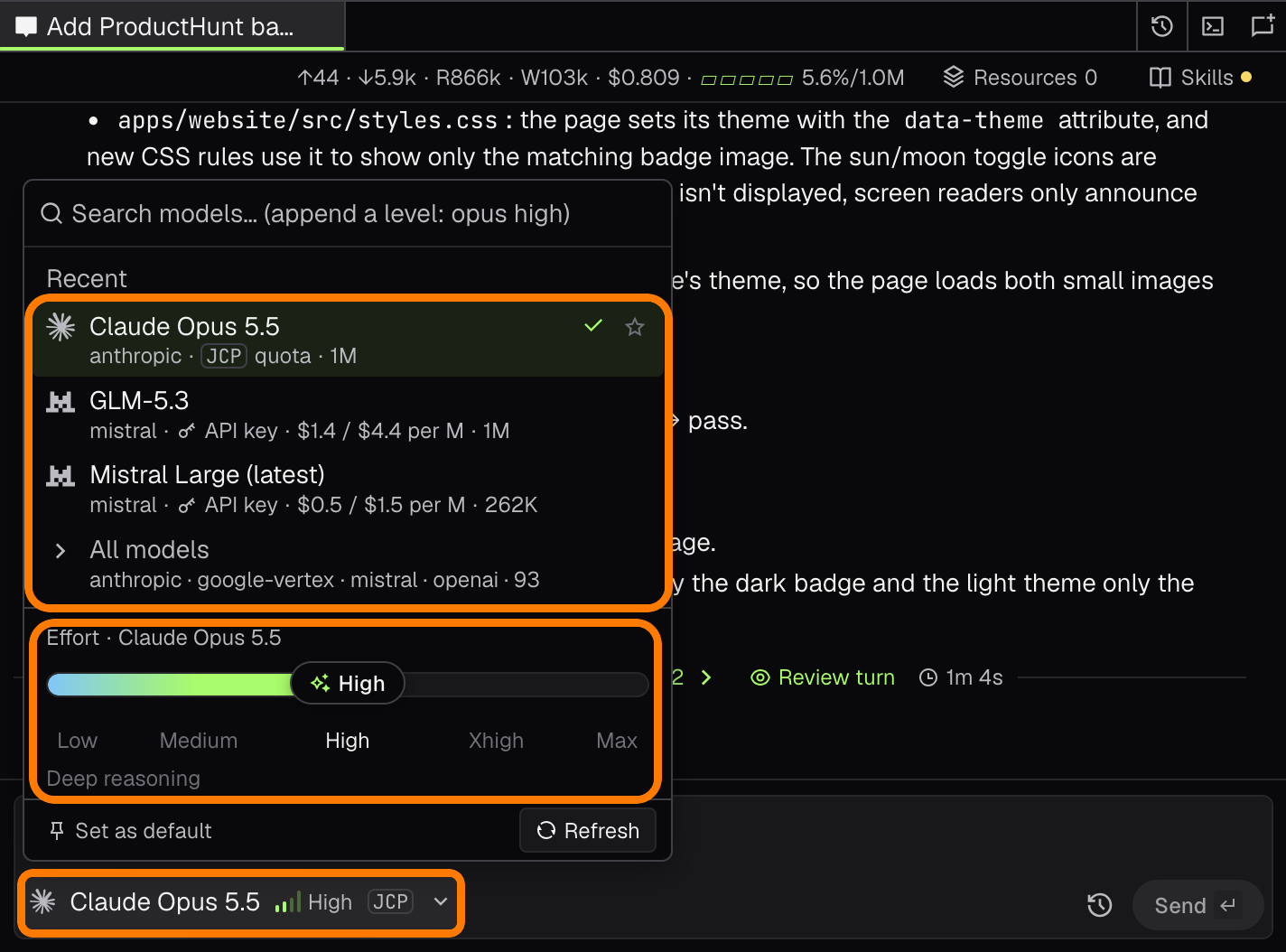
8. The Model picker, where you choose the LLM for the current chat and its reasoning effort. |
The workspace
|
|
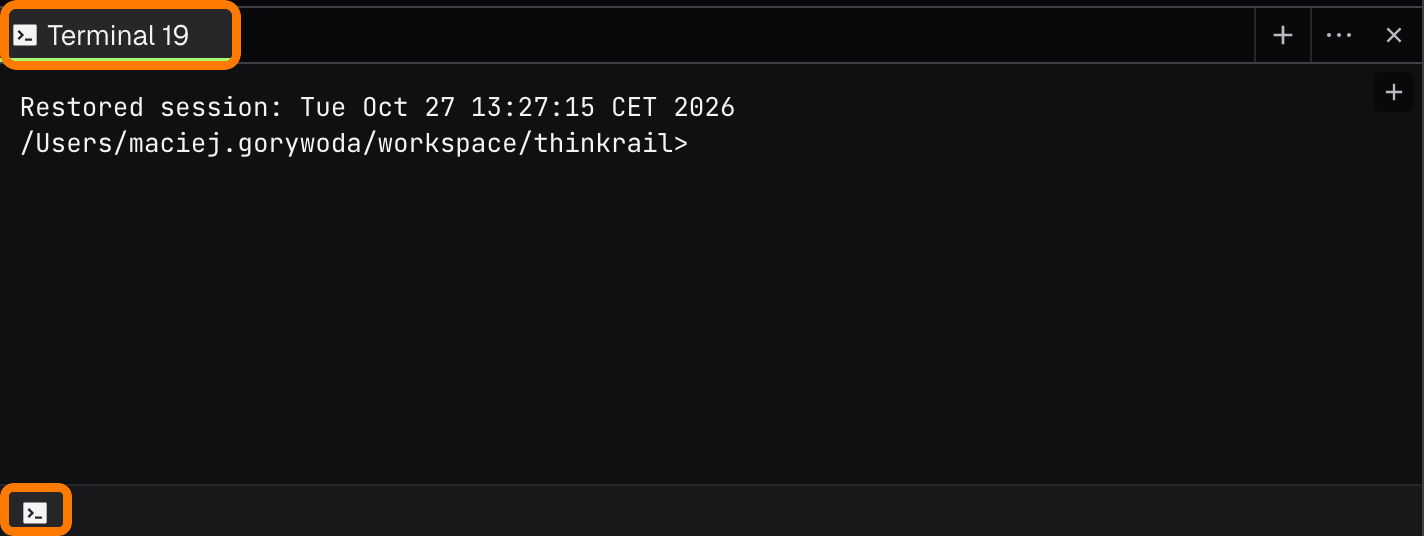
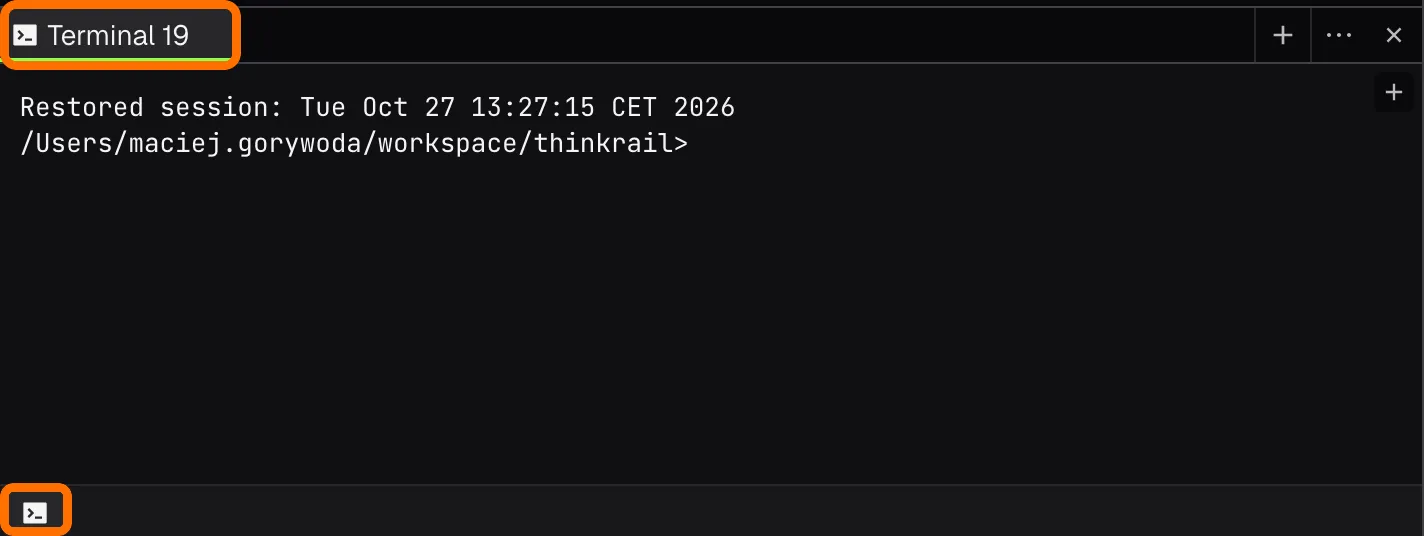
| 9. The Terminal panel, where you can type commands and work with your OS. |
 |
|
|
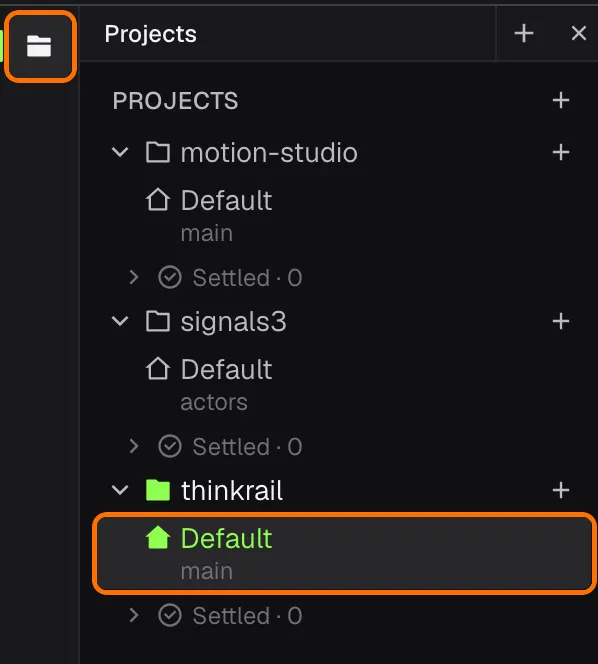 |
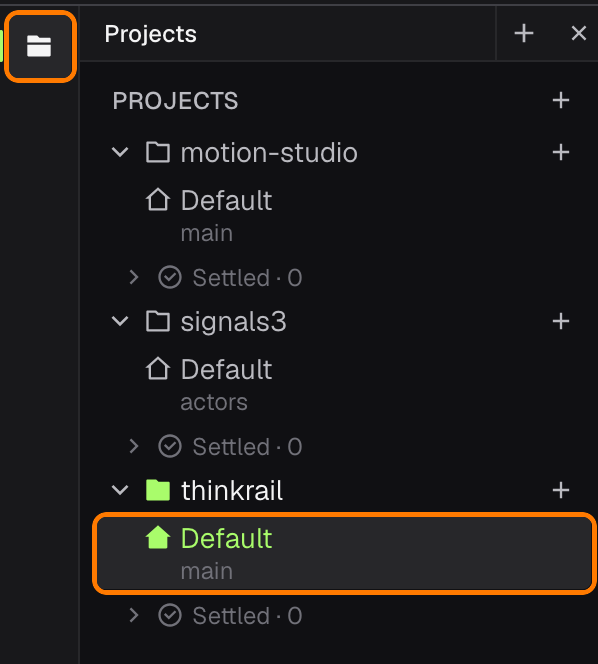
10. The Projects panel: your open projects, the workspaces in each, and the Settled shelf for finished ones (ThinkRail Workspaces). |
|
|
| 11. The current project, workspace, and branch, and how the branch stands against its remote and pull request. |
 |
|
|
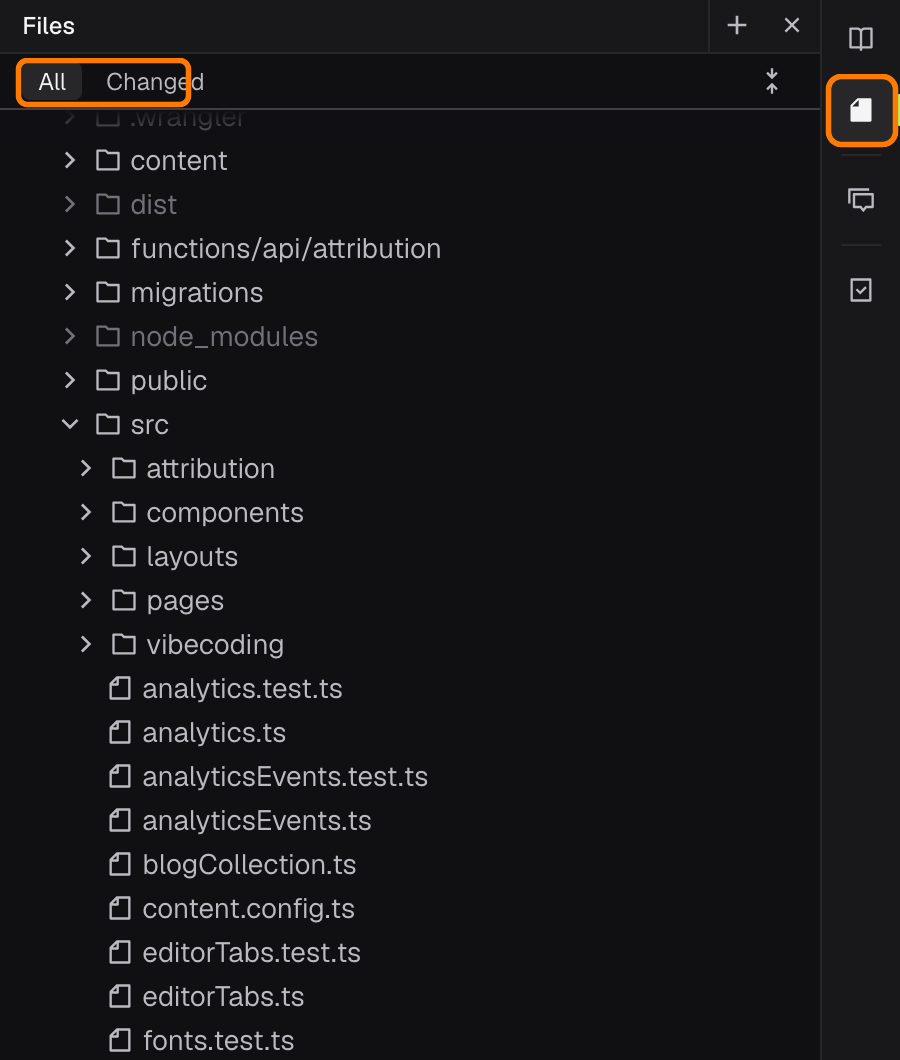
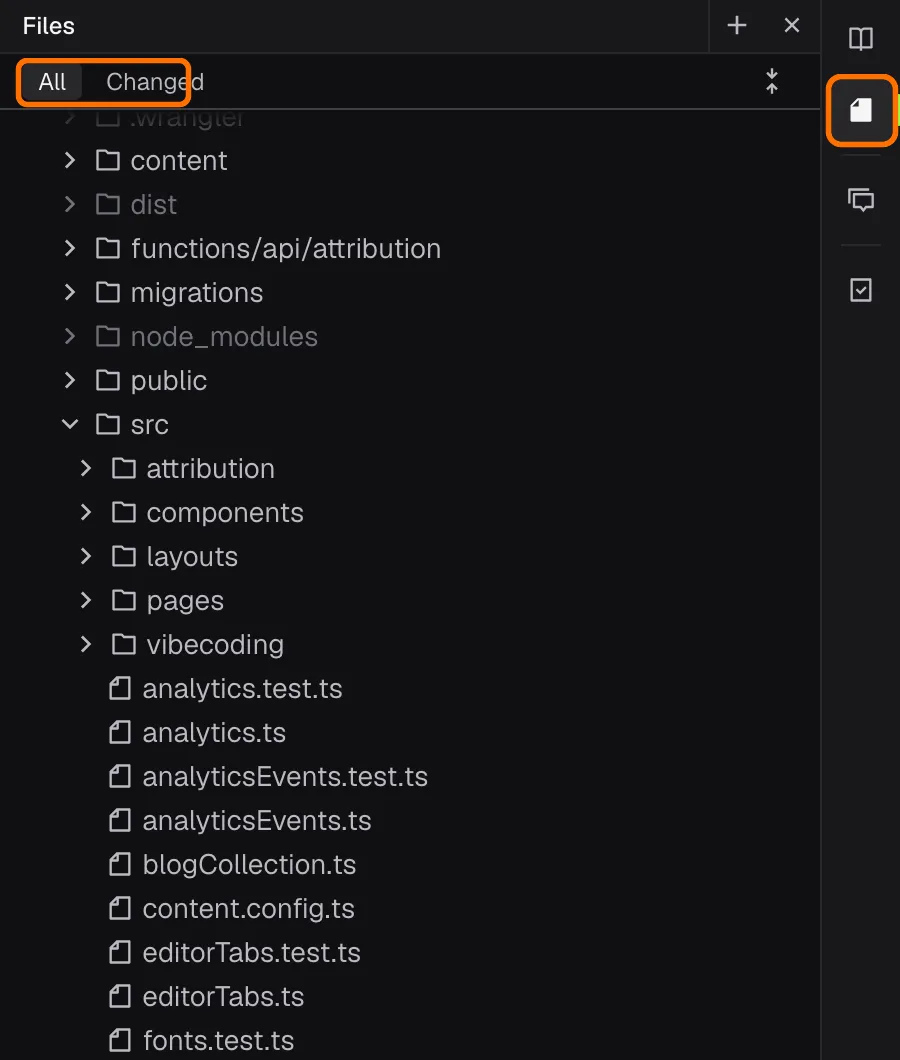
| 13. The Files panel, where you can browse and open the project’s files, or show only the changed ones. |
 |
|
|
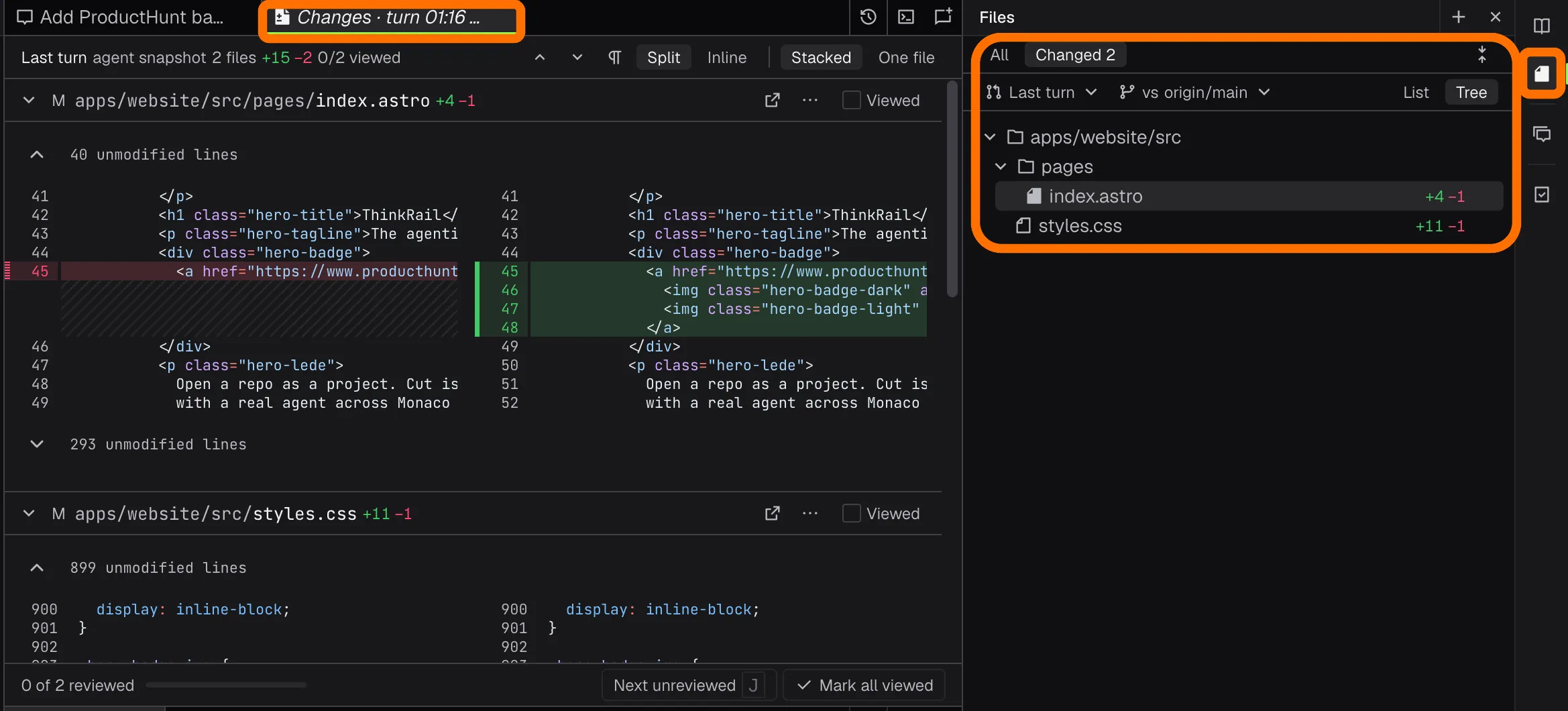 |
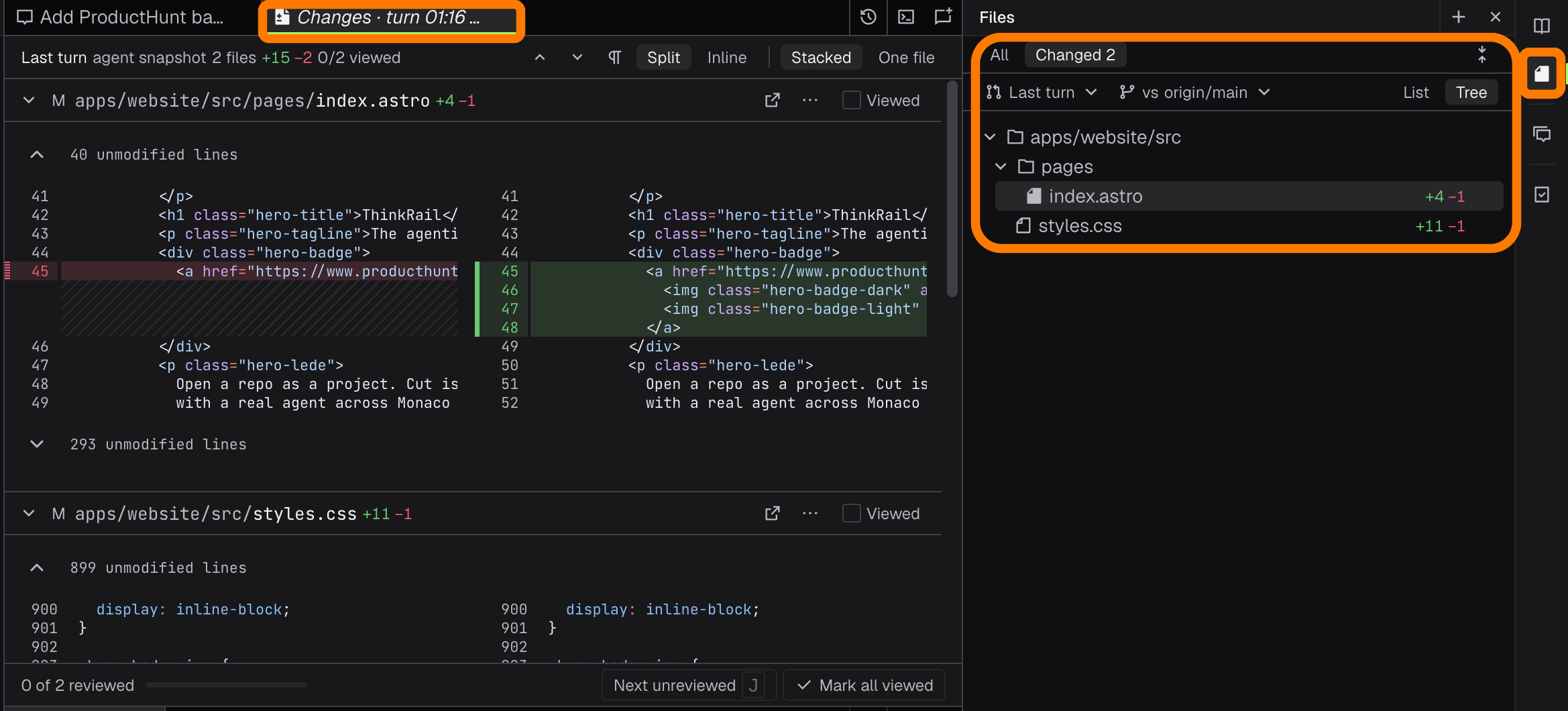
14. The Changes panel, where you review what the agent changed in the last turn or on the whole branch (ThinkRail 0.2.0). |
|
|
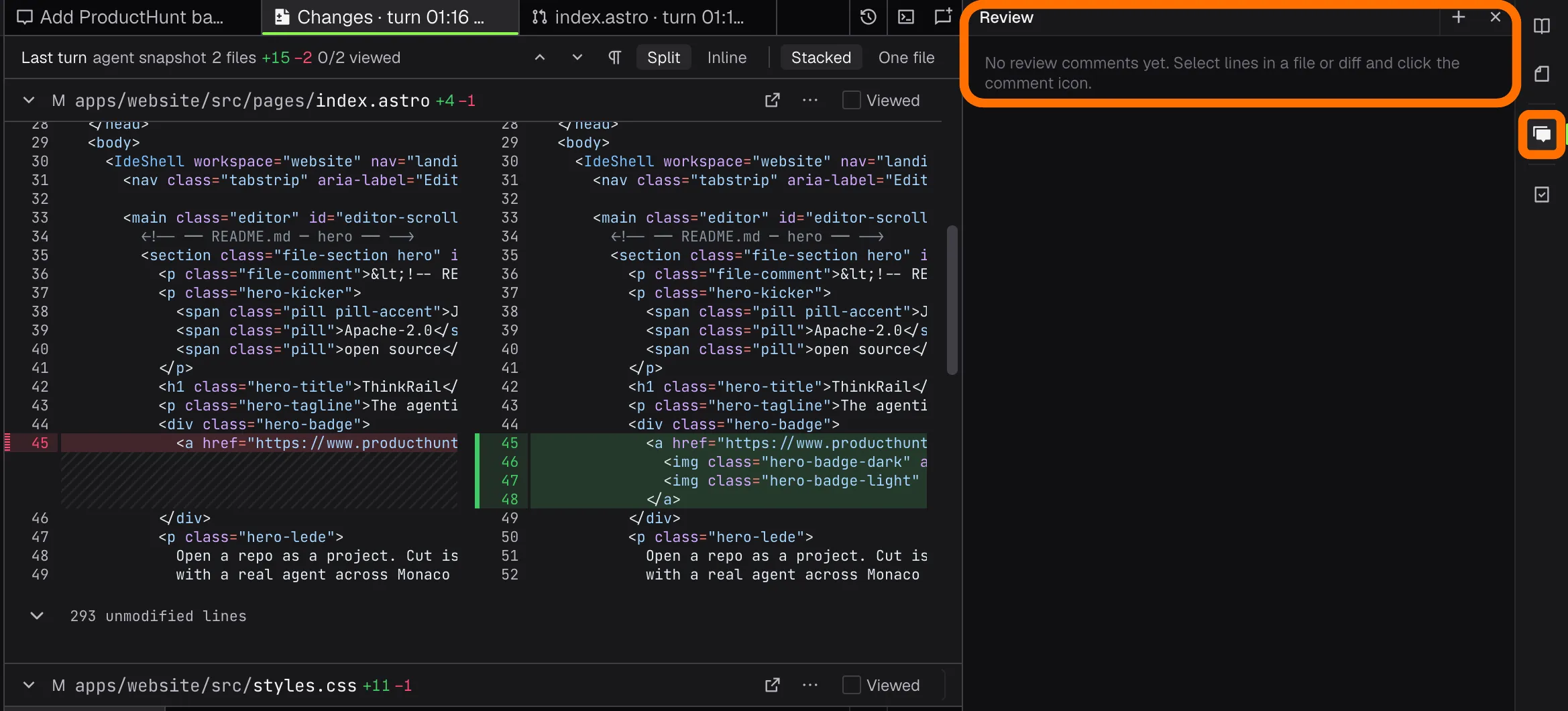
| 15. The Review panel, where you collect comments on lines of files and diffs and send them to the agent. |
 |
|
|
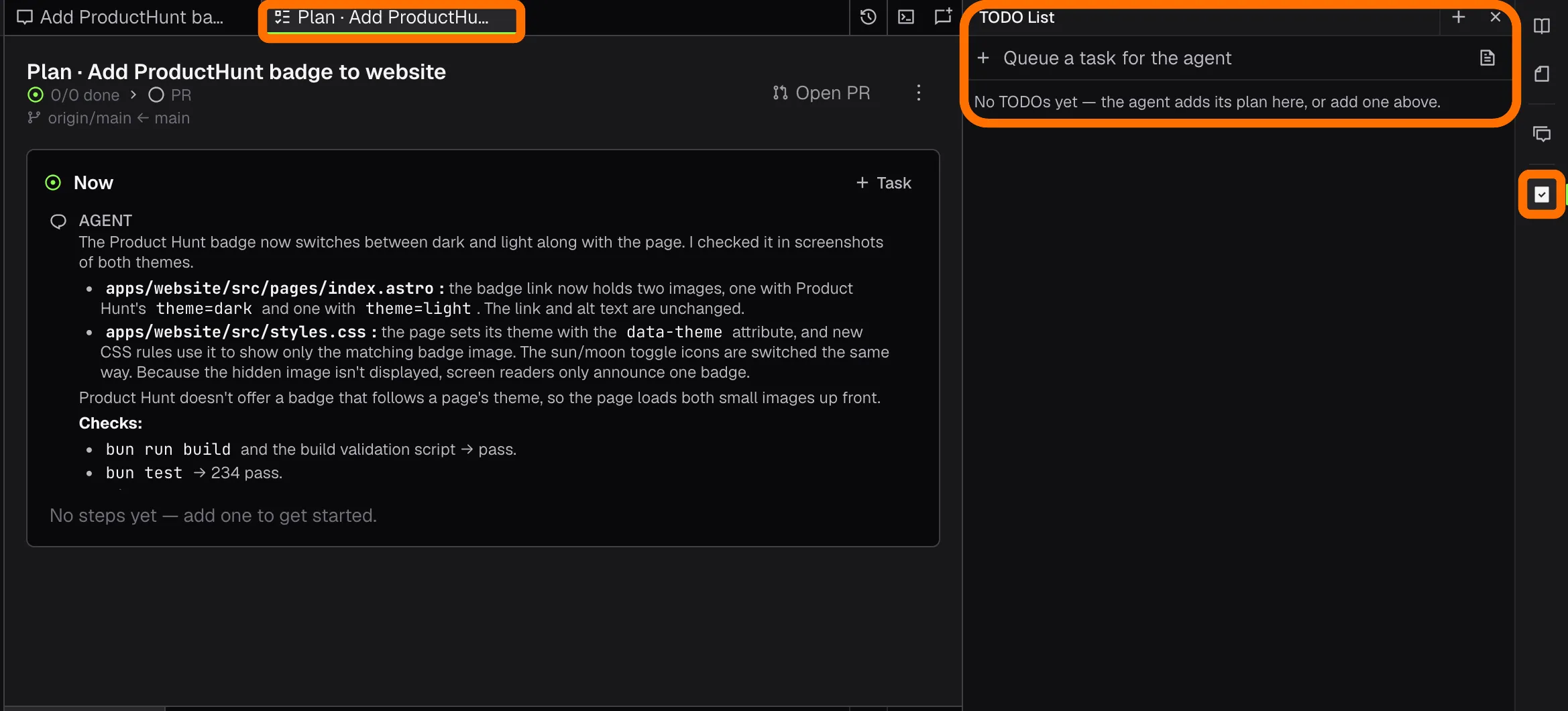 |
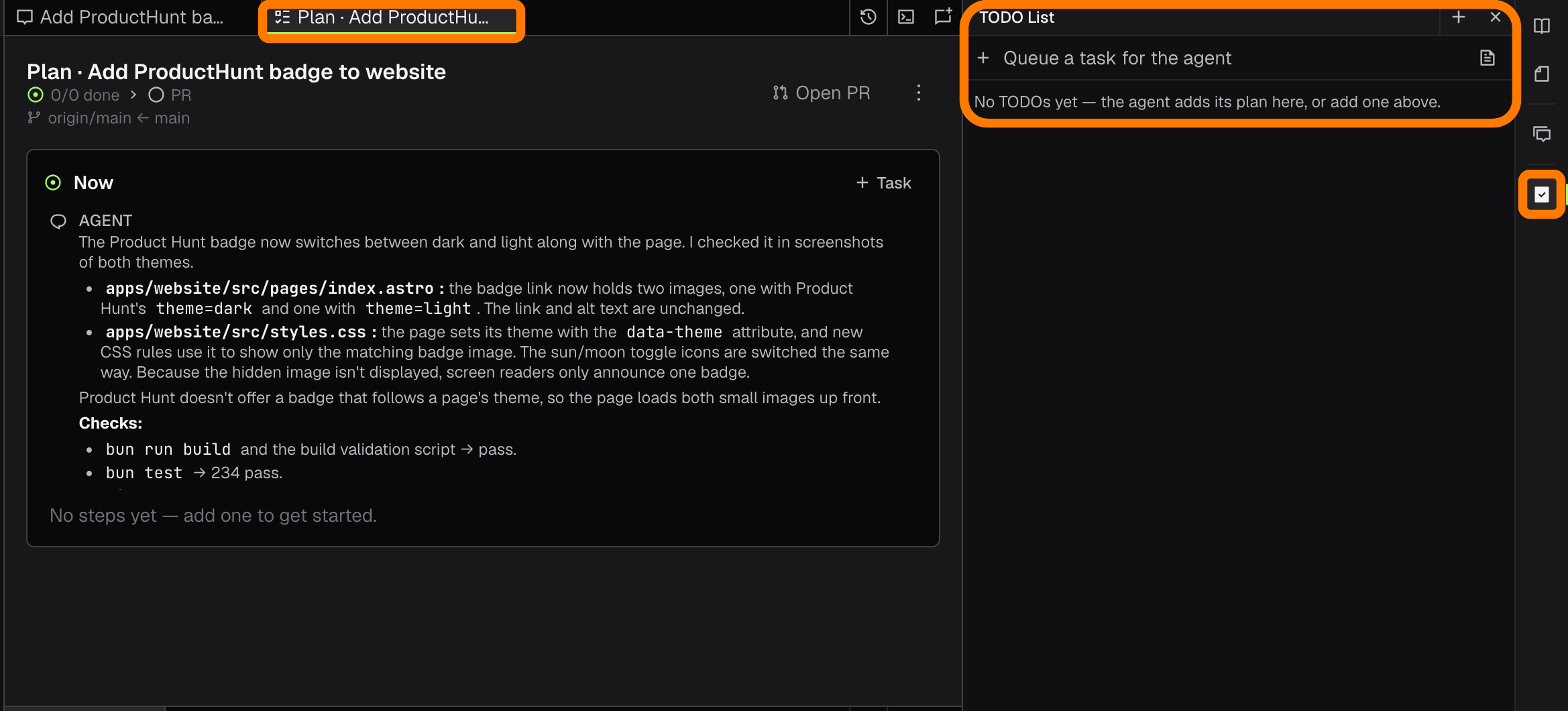
16. The TODO list, where you and your agent plan the next steps, with the full plan one click away (ThinkRail 0.2.0). |
Create project
|
|
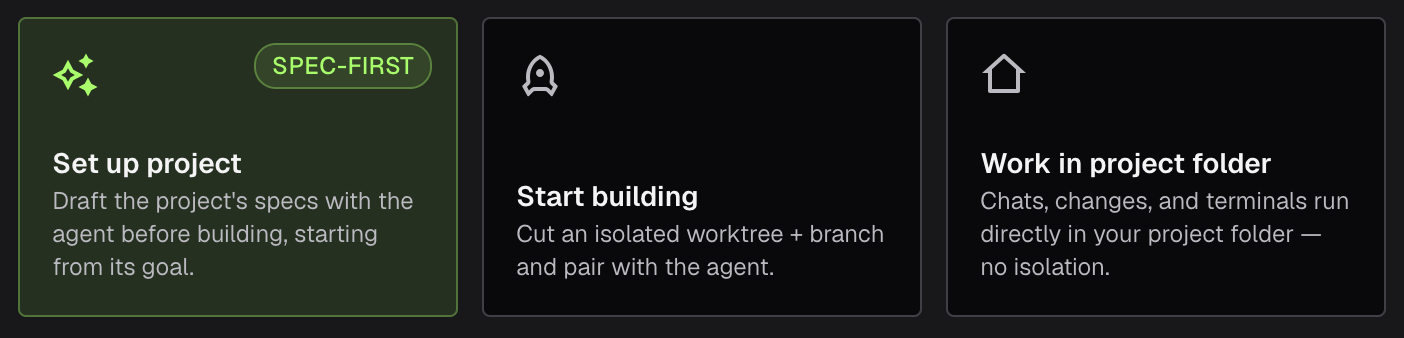
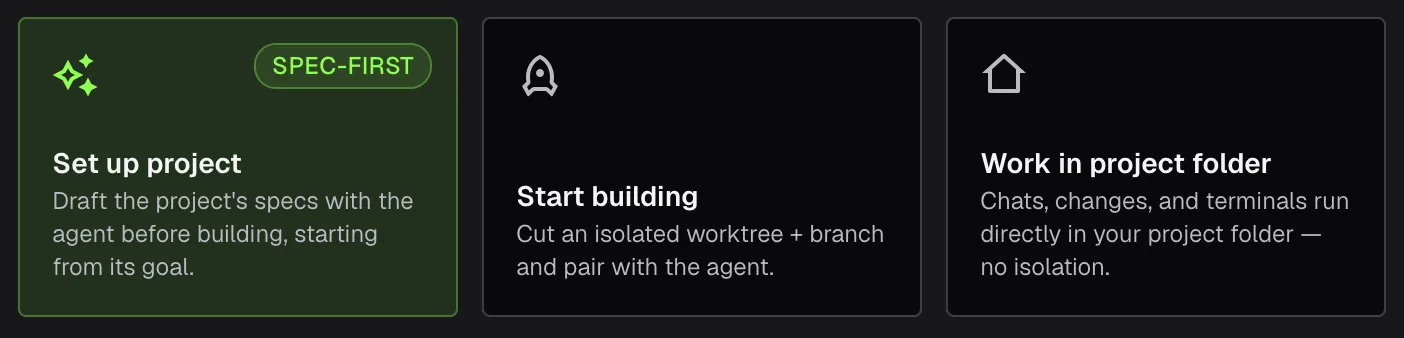
| The Welcome screen lets you choose between starting a new project by drafting specifications, start to code immediately in a new workspace, or simply open an existing project. (Introducing ThinkRail |
 |
|
|
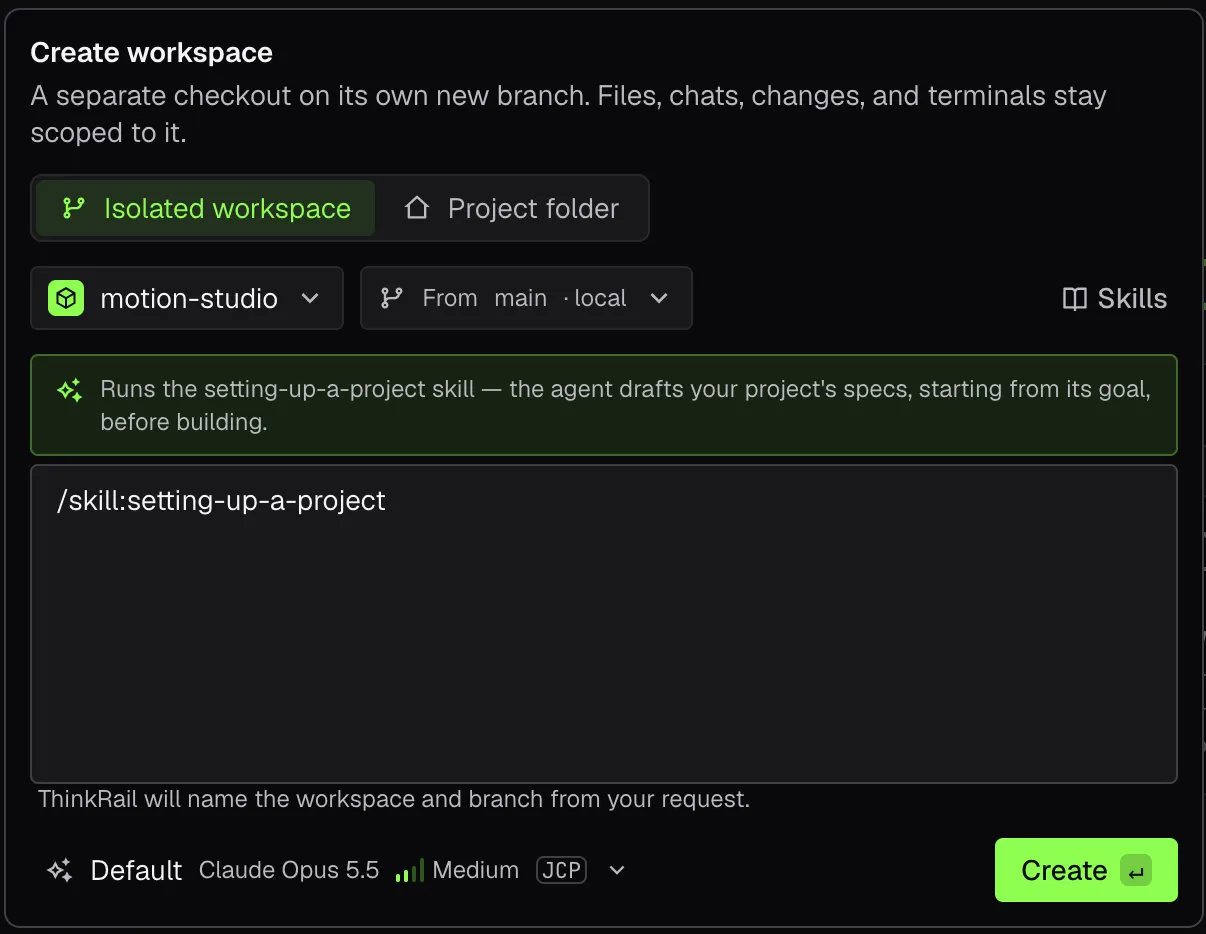 |
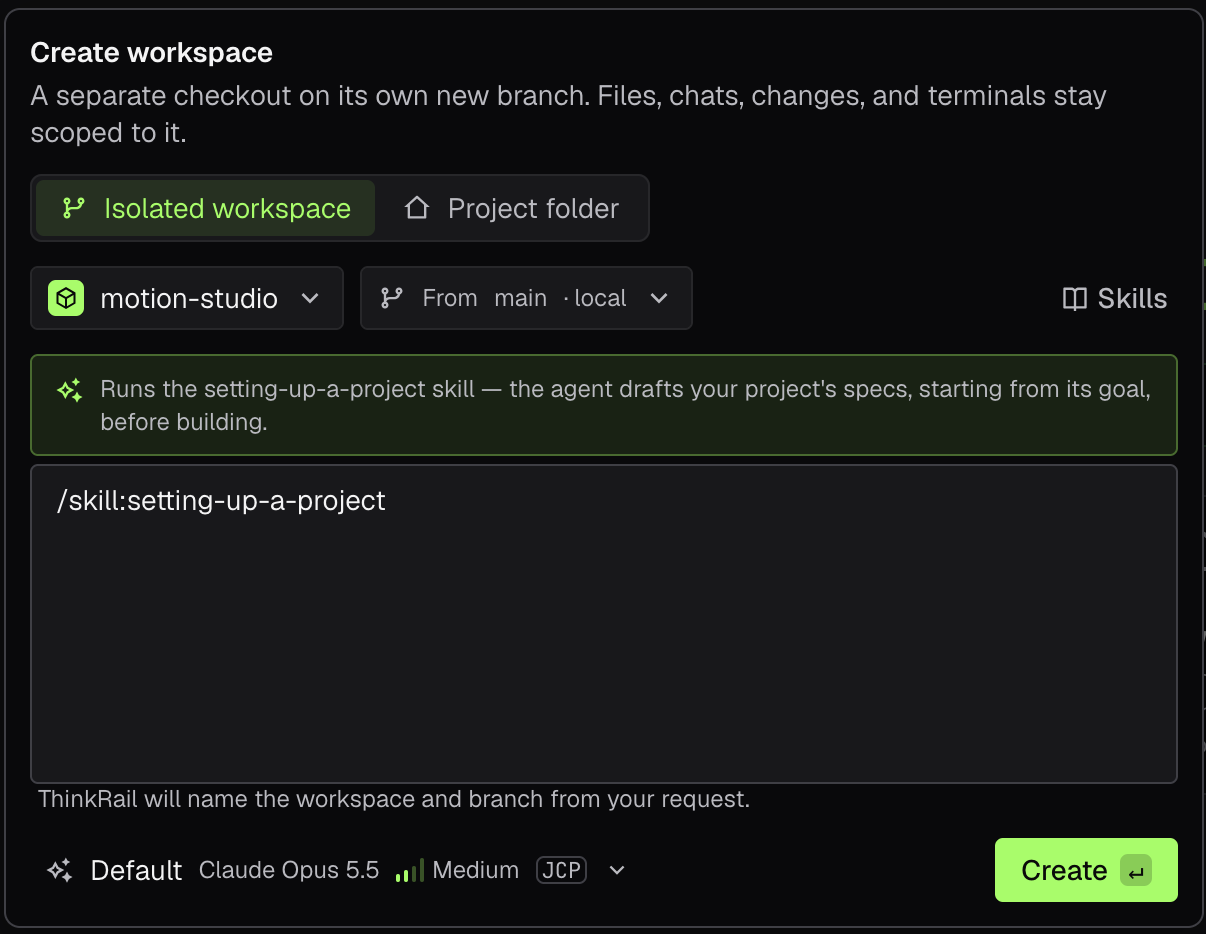
The window that lets you create a configure a new workspace (git worktree) within your project. (ThinkRail Workspaces) |
|
|
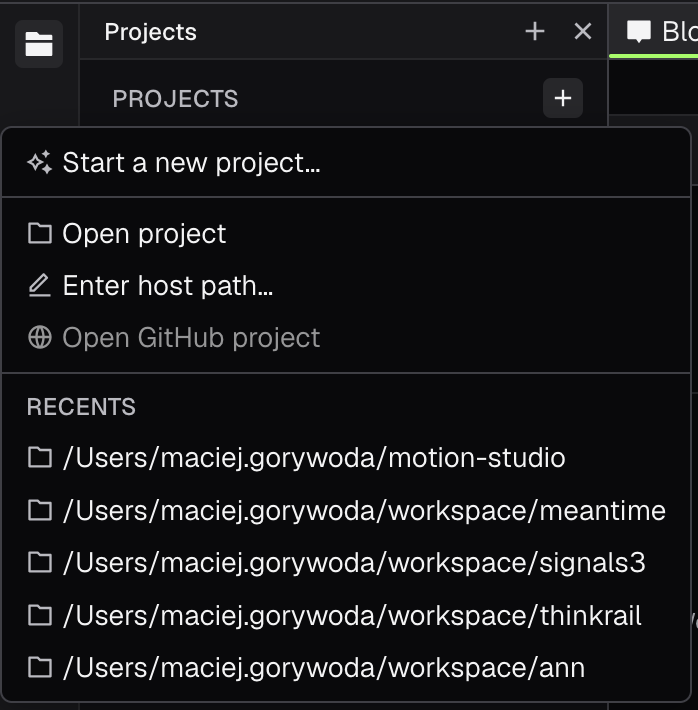
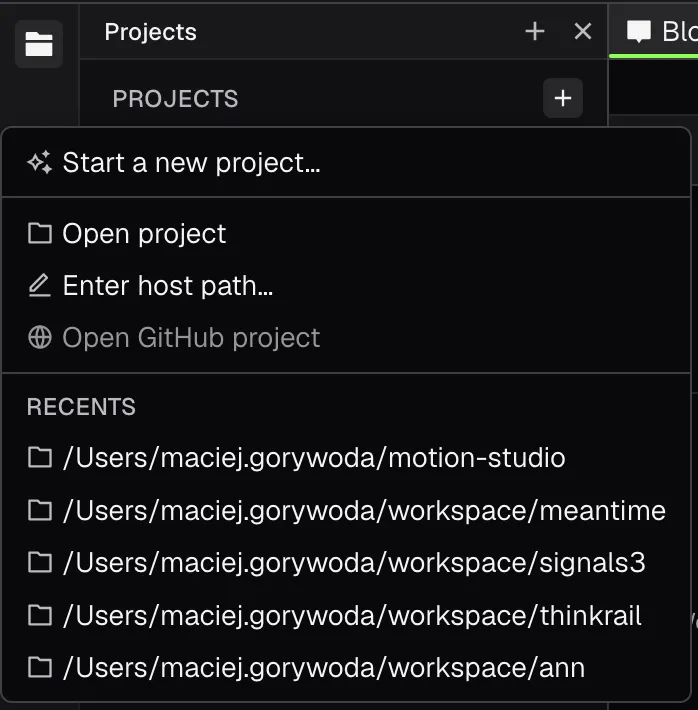
| A popup that lets you create a new project from the Projects list in the main GUI |
 |
Settings
|
|
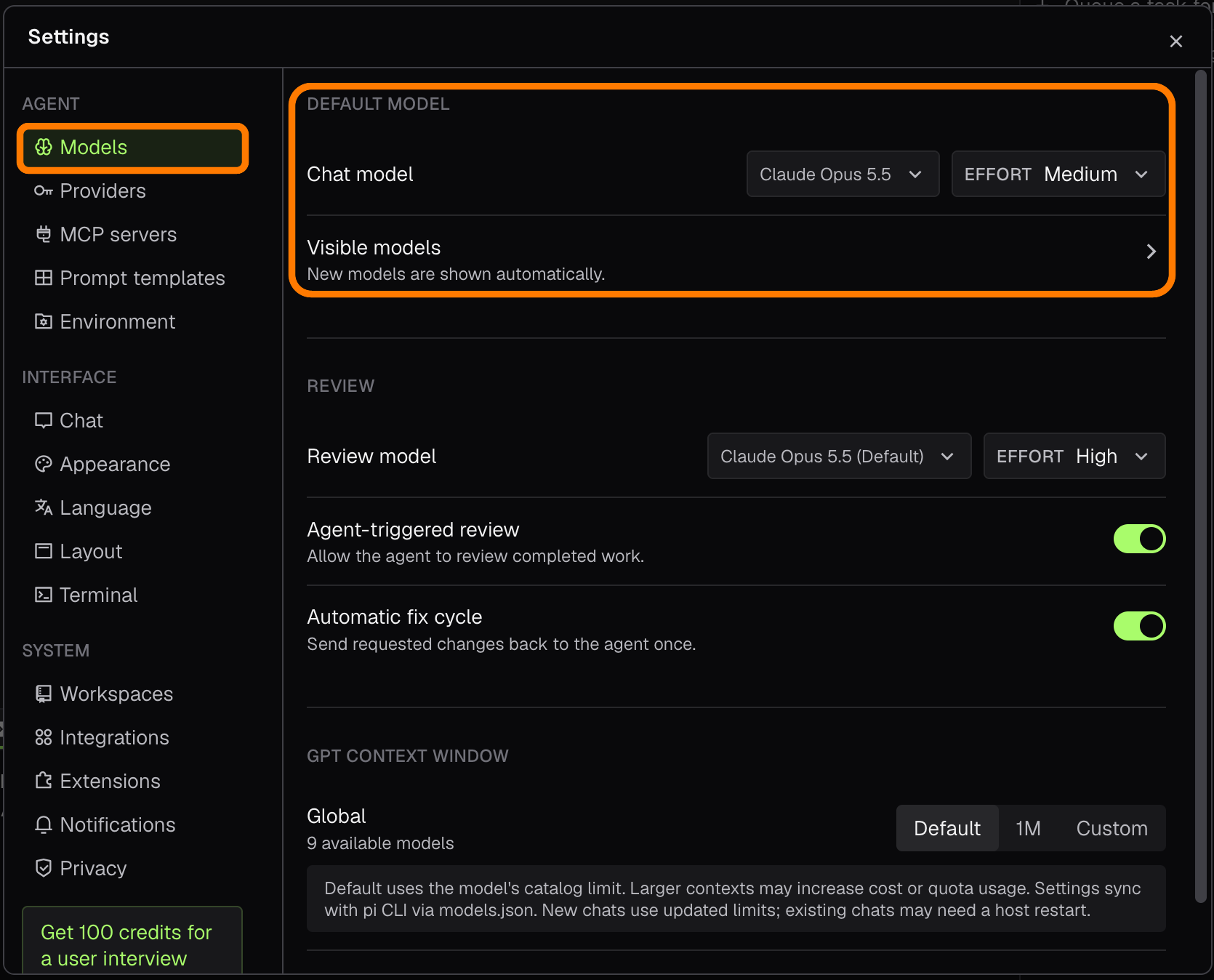
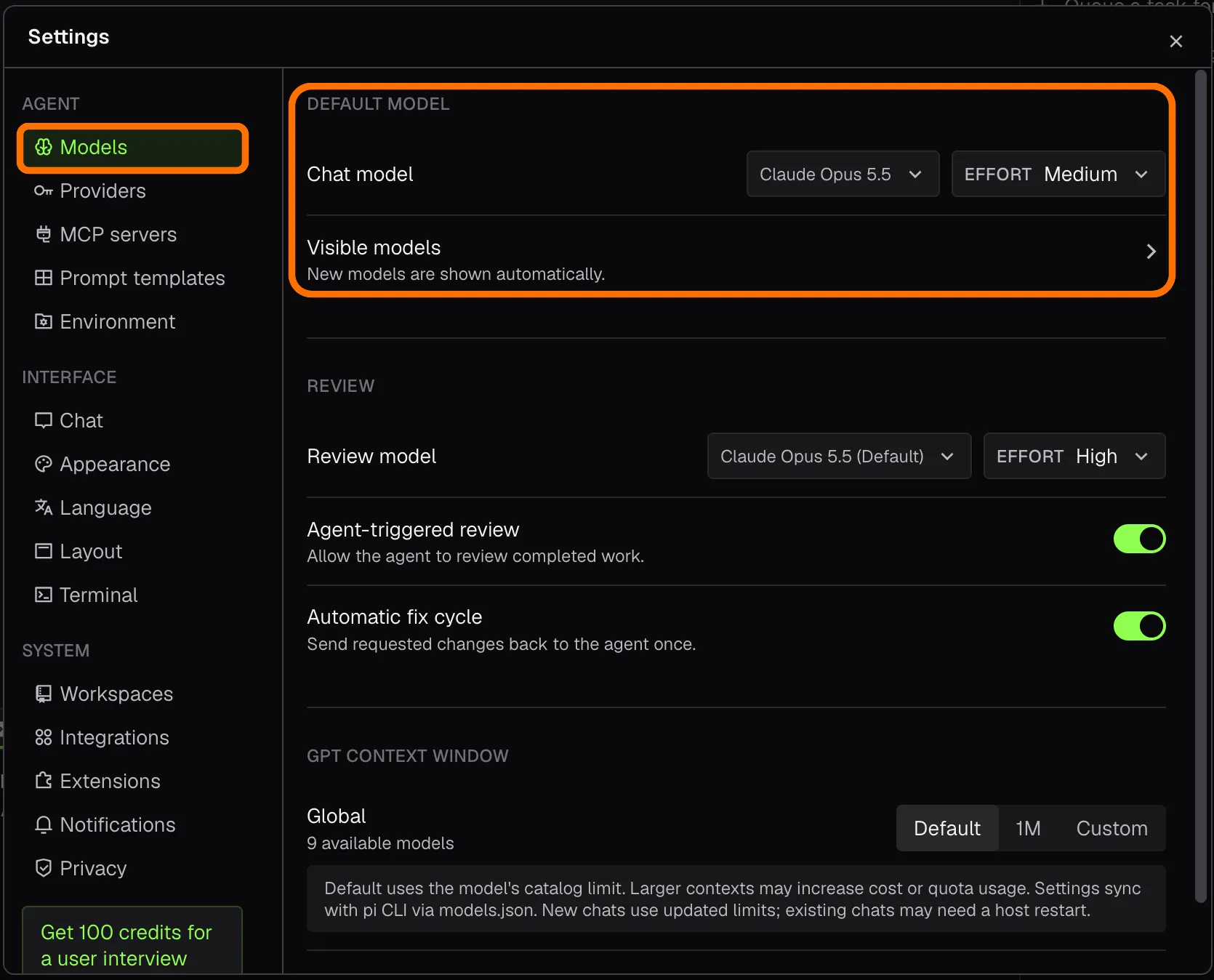
| Choose the default model for new chats and for reviews, and which models show up in the picker. |
 |
|
|
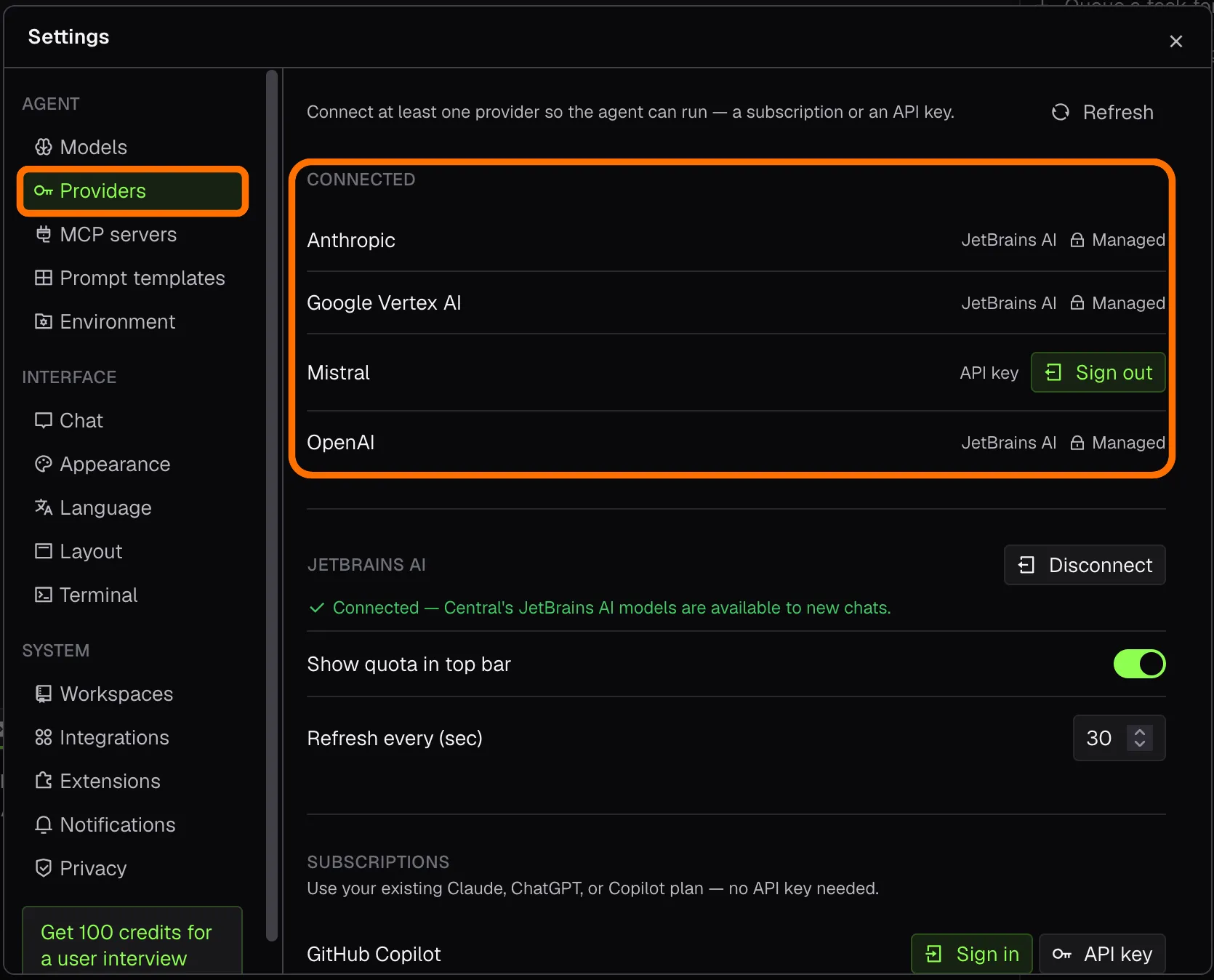 |
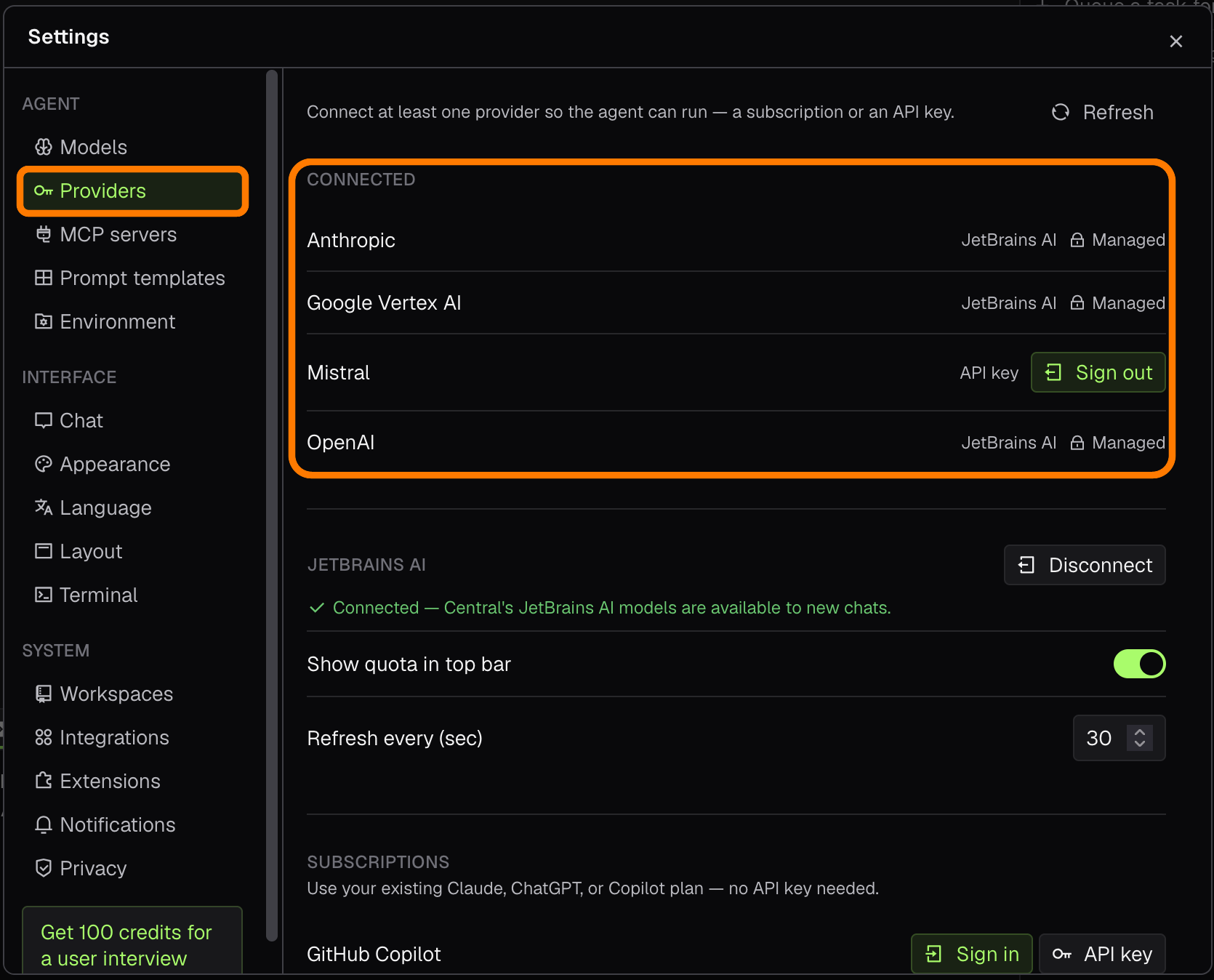
Connect your LLM providers, with a subscription or an API key. |
|
|
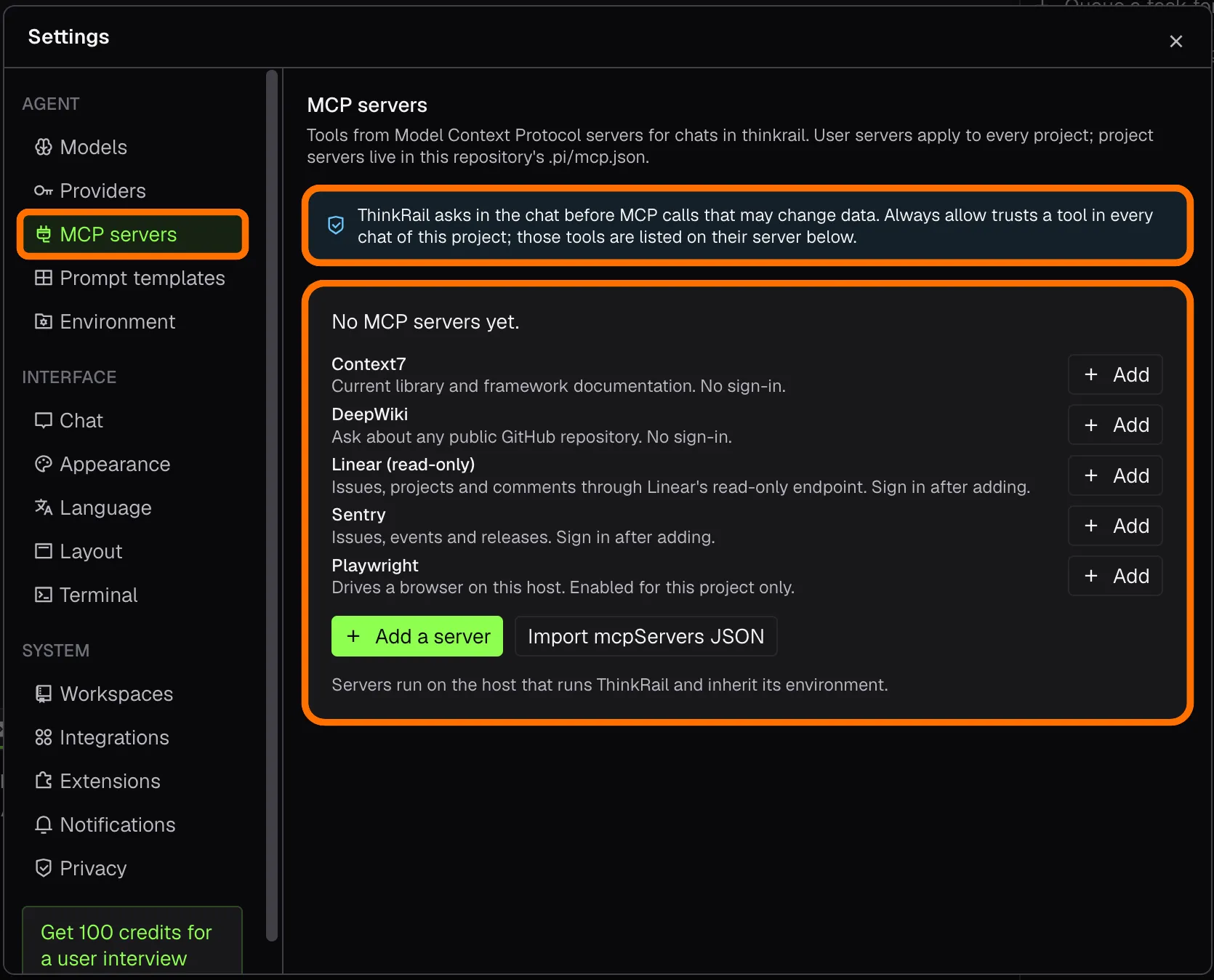
| Add MCP servers from presets or your own configuration; ThinkRail asks in the chat before calls that may change data (ThinkRail 0.2.0). |
 |
|
|
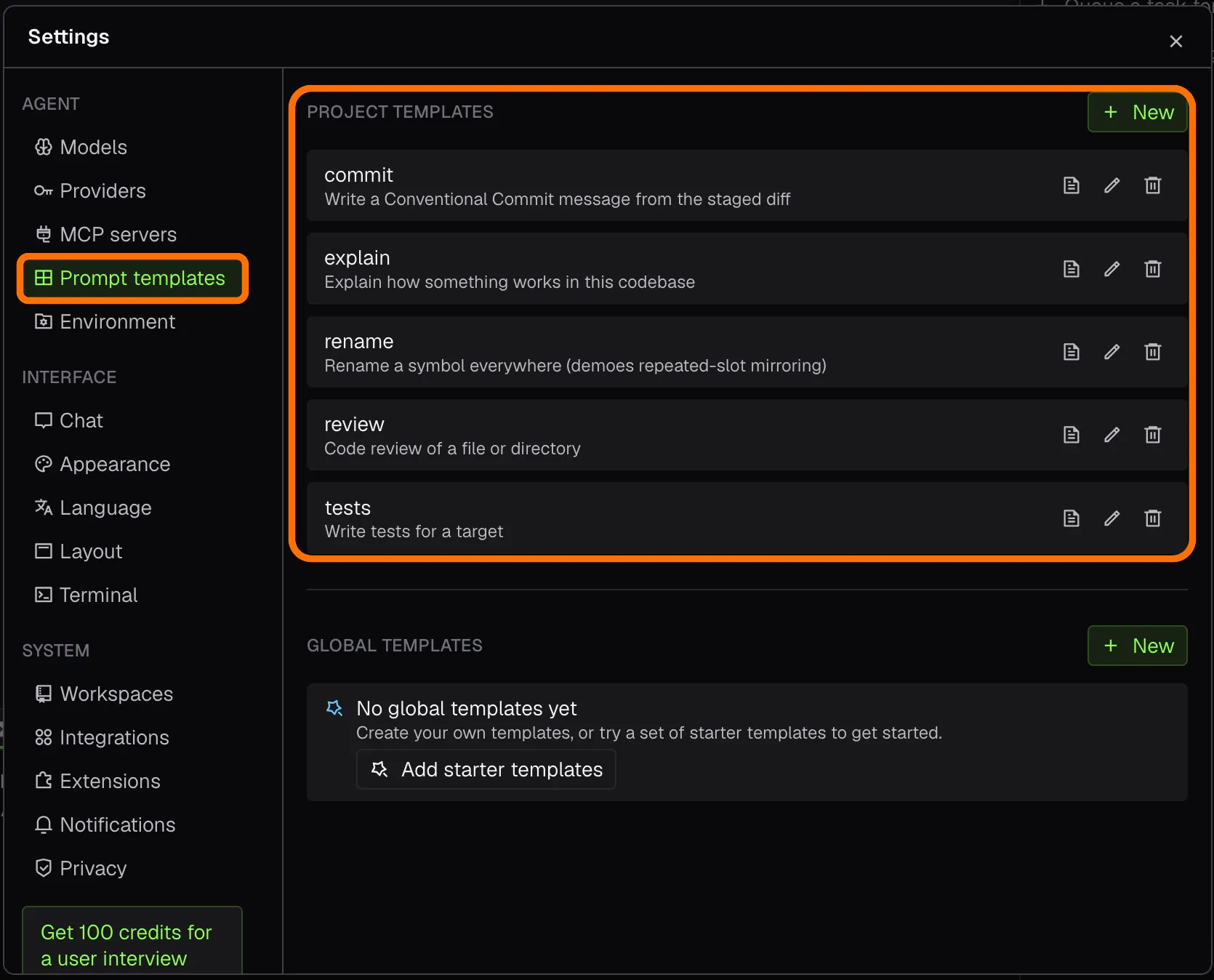 |
Create templates for your most frequently used prompts, for one project or for all of them. |
|
|
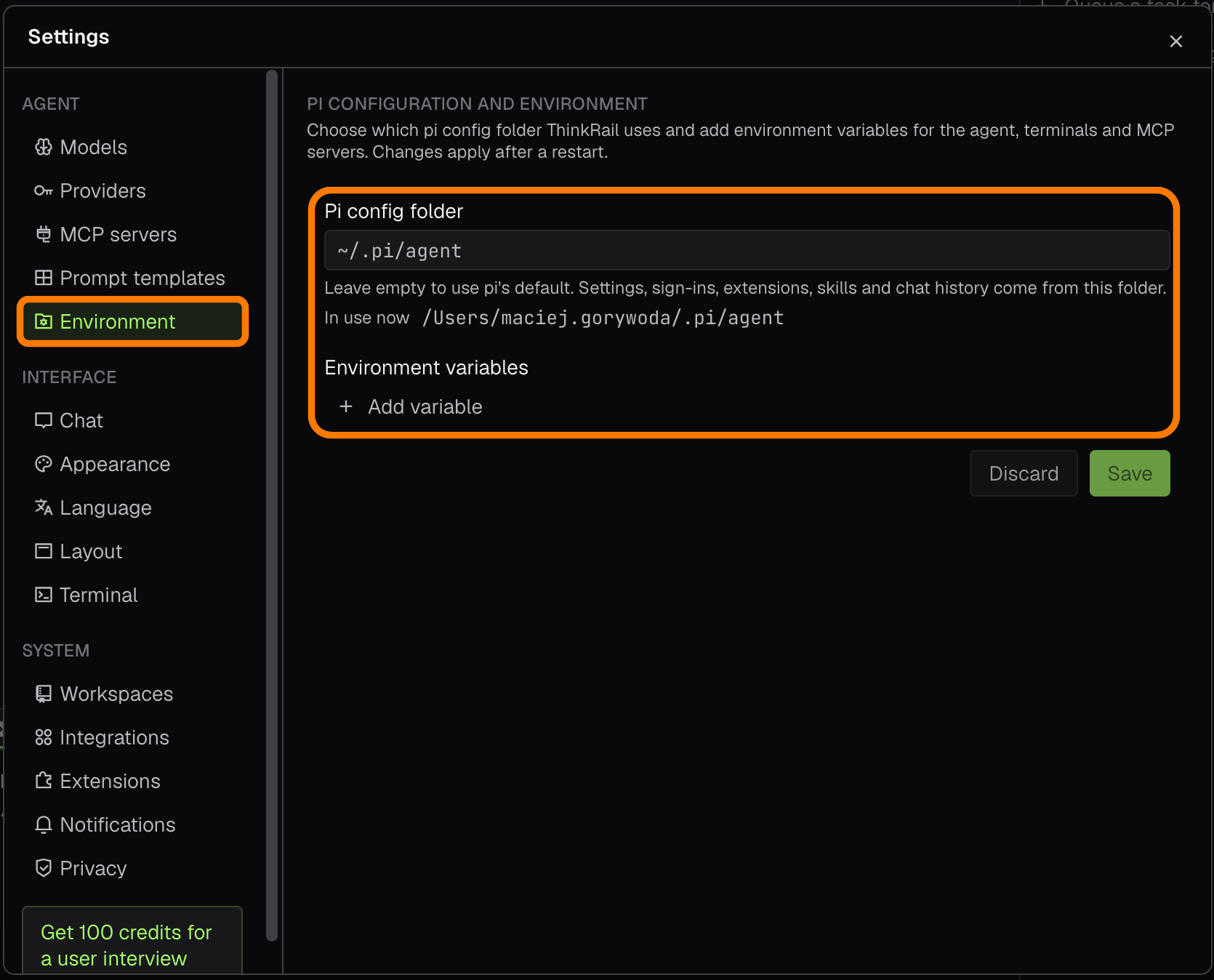
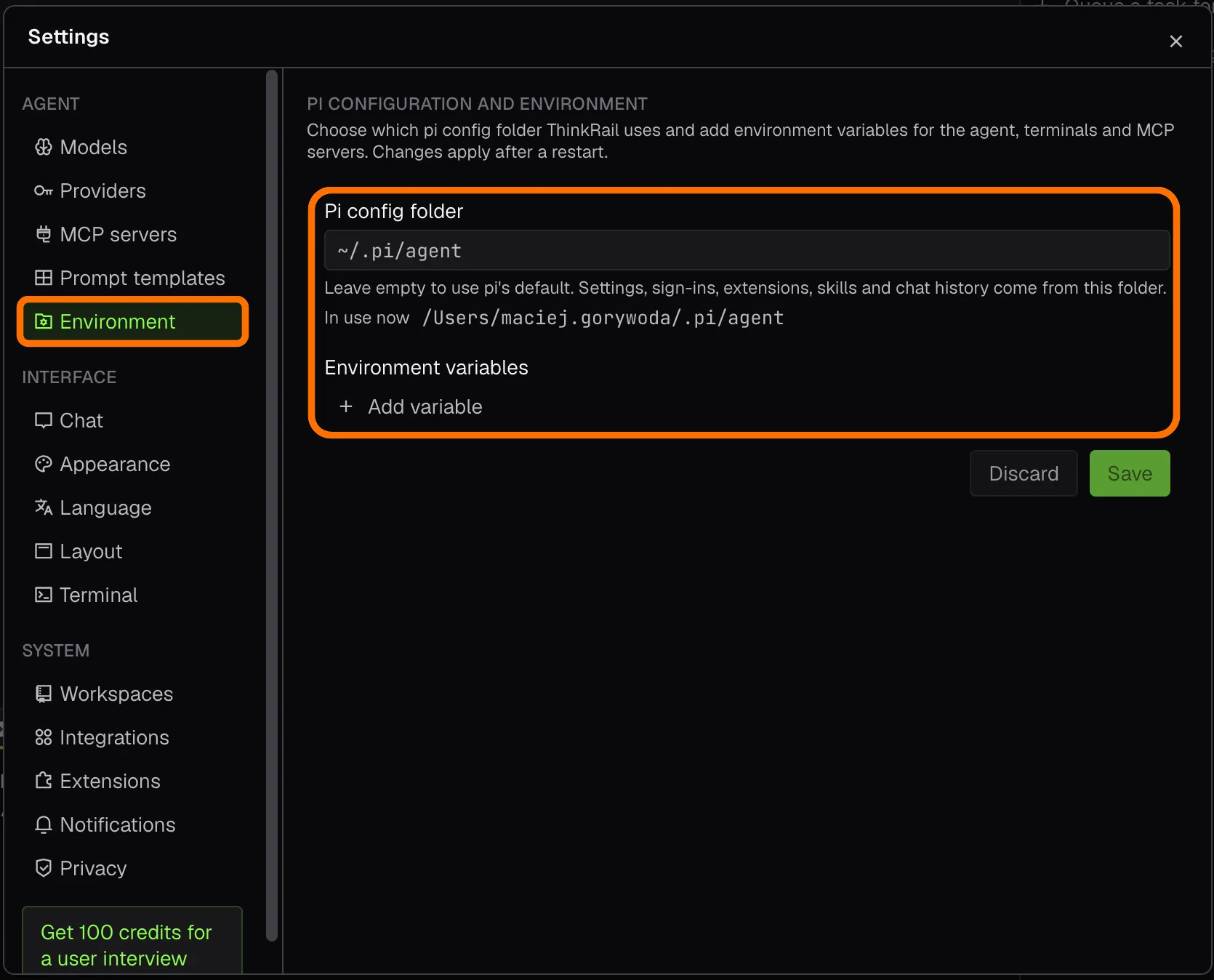
| Choose the Pi config folder ThinkRail uses, and set environment variables for the agent, terminals, and MCP servers. |
 |
|
|
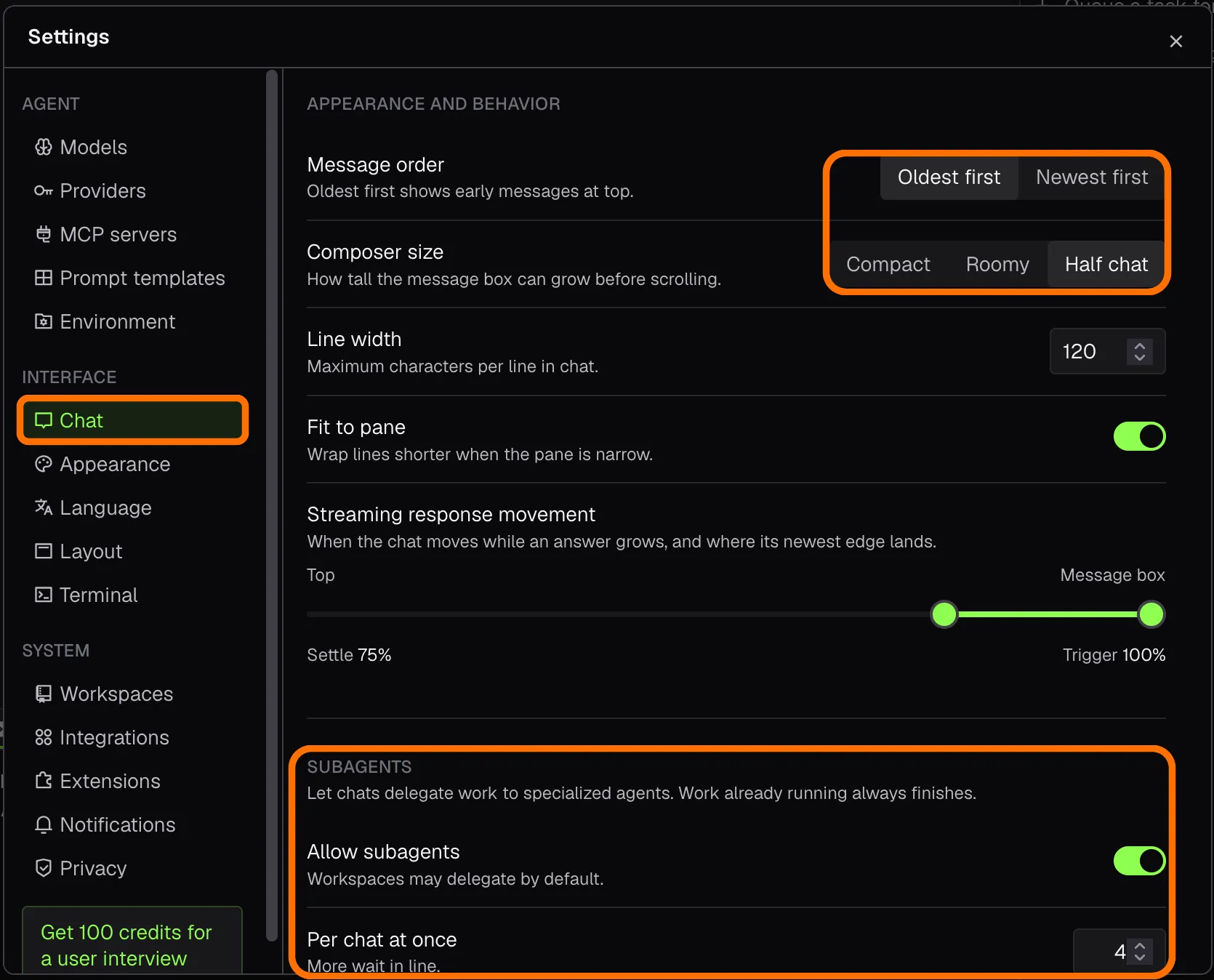 |
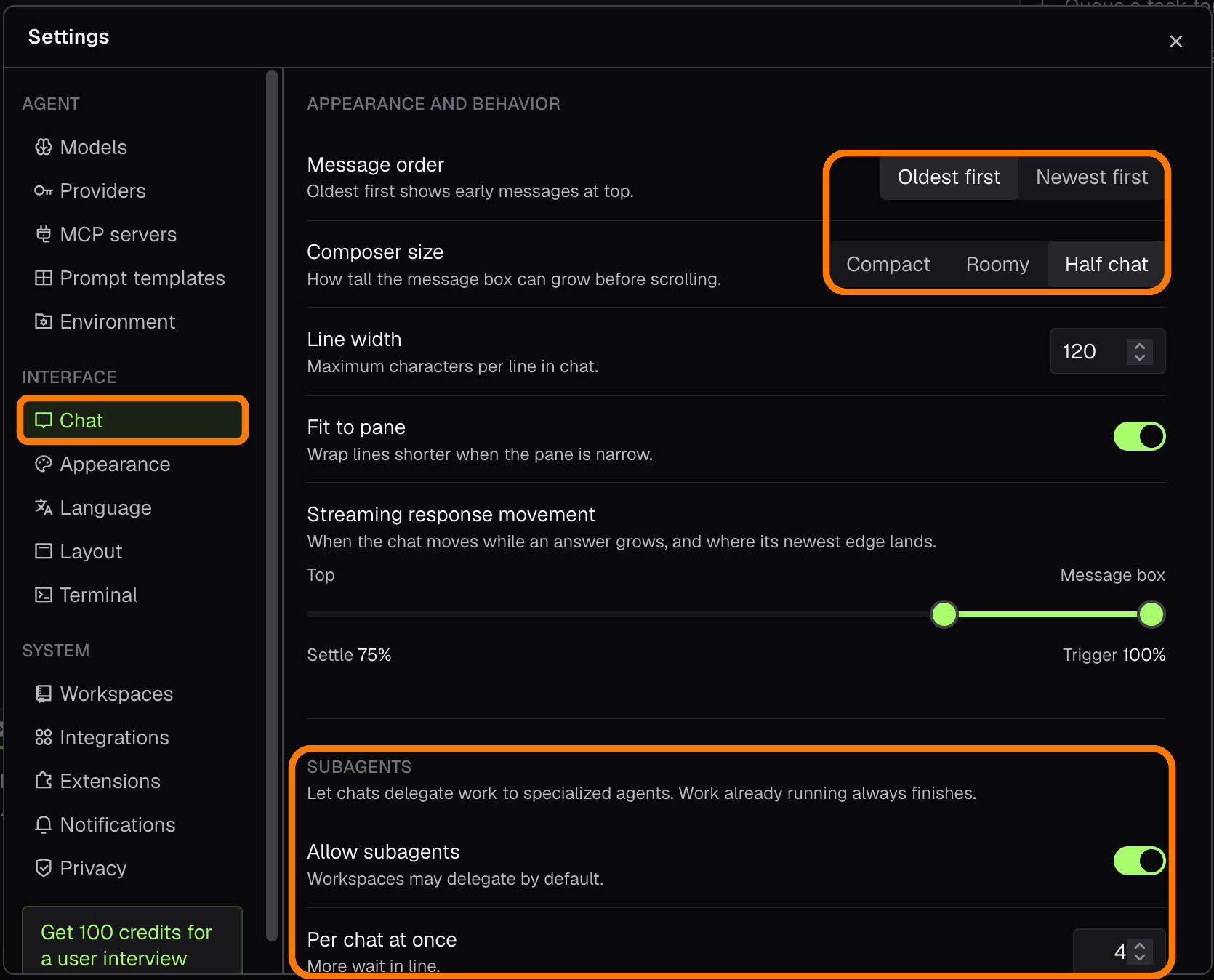
Tune the chat: message order, message box size, line width, how the view follows a streaming answer, and how many subagents a chat may run. |
|
|
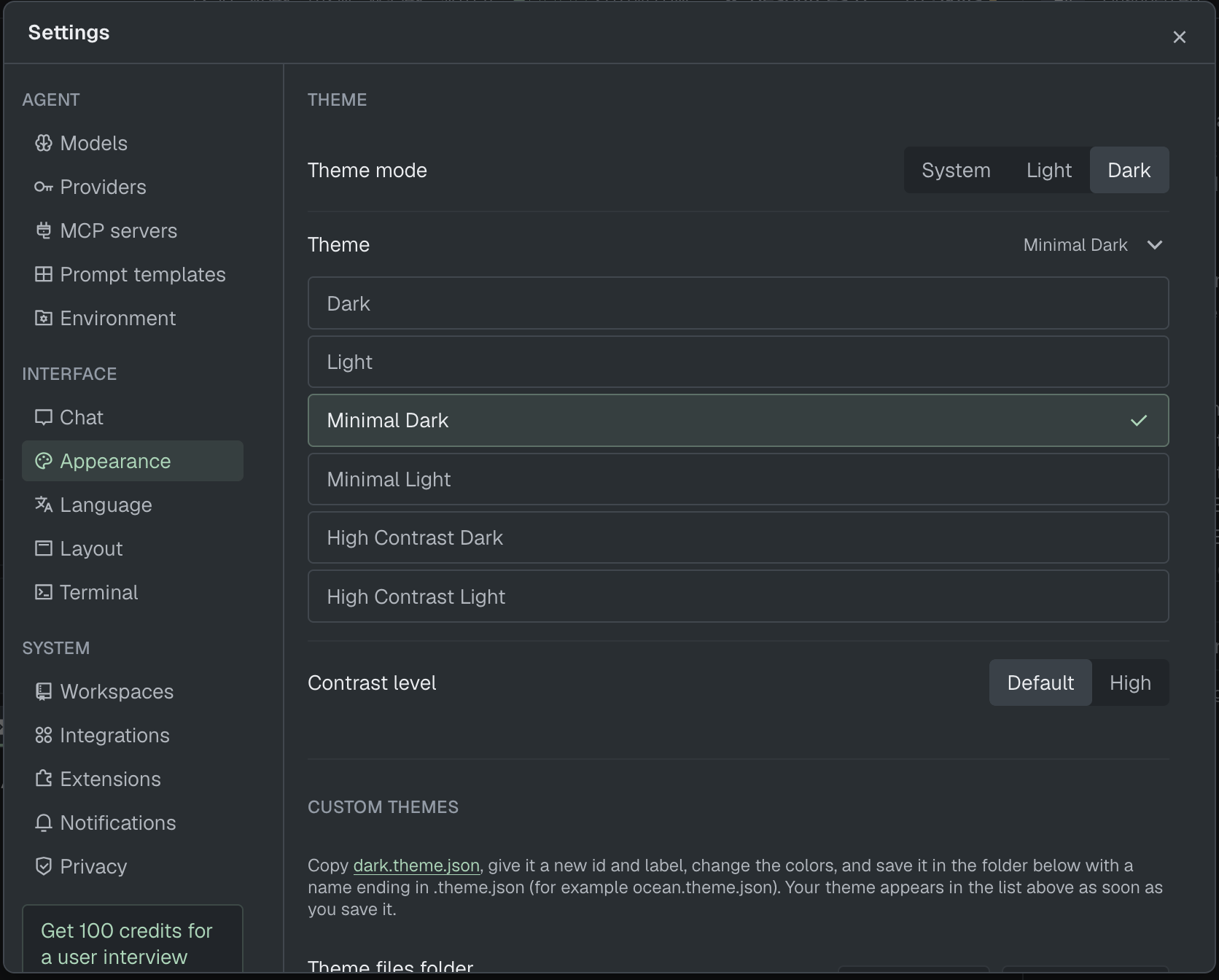
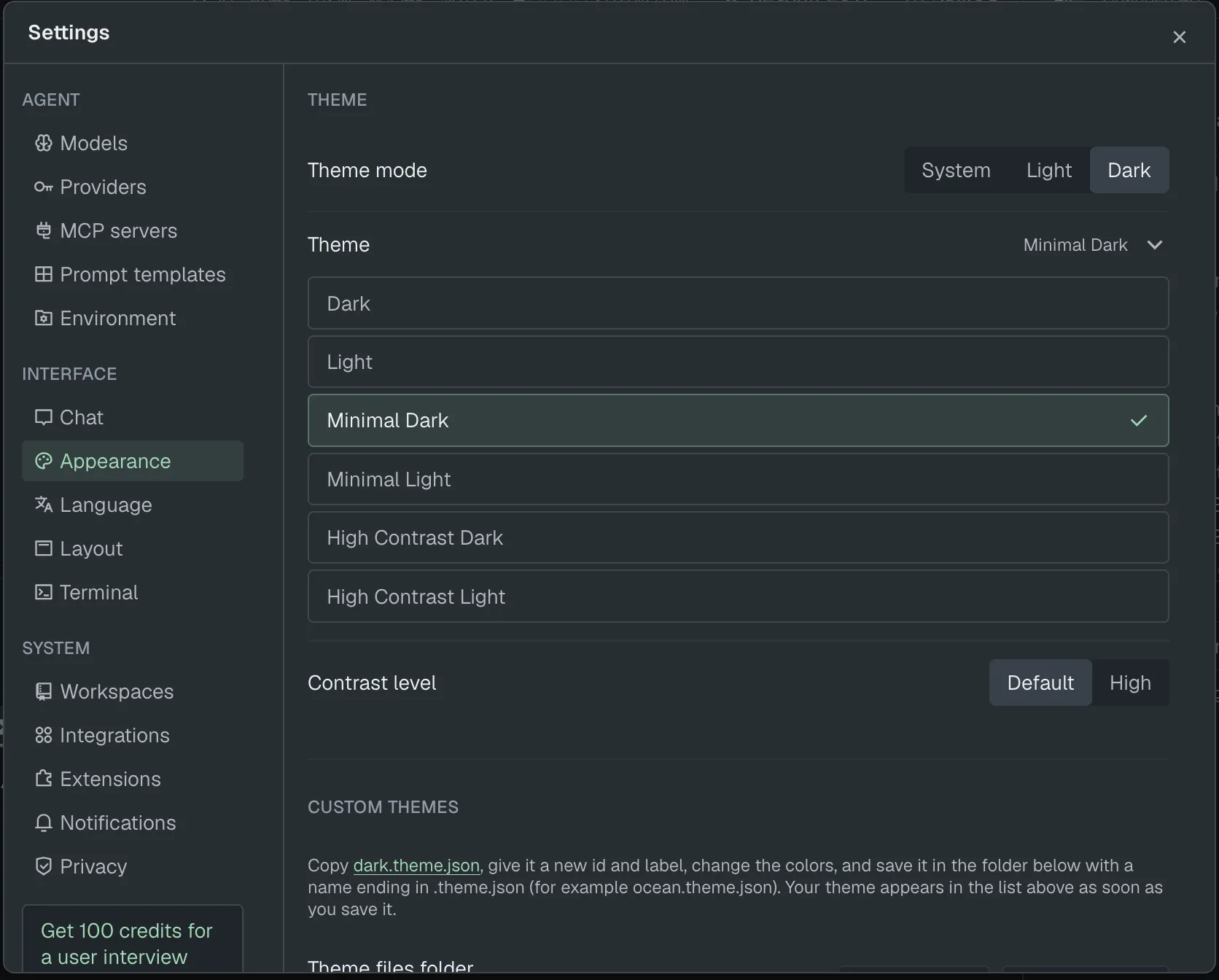
| Pick a theme and contrast level, and the line width for files and diffs. |
 |
|
|
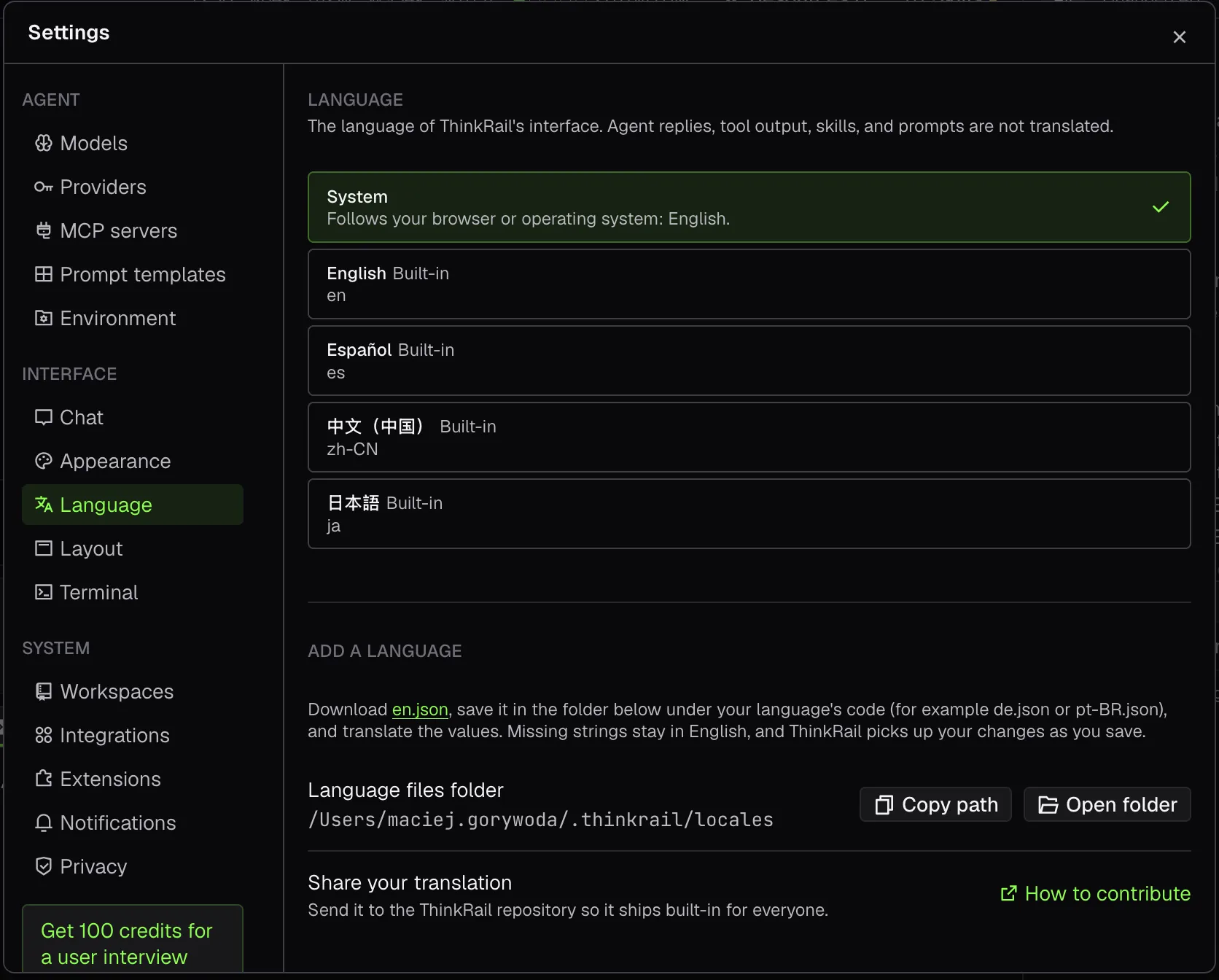 |
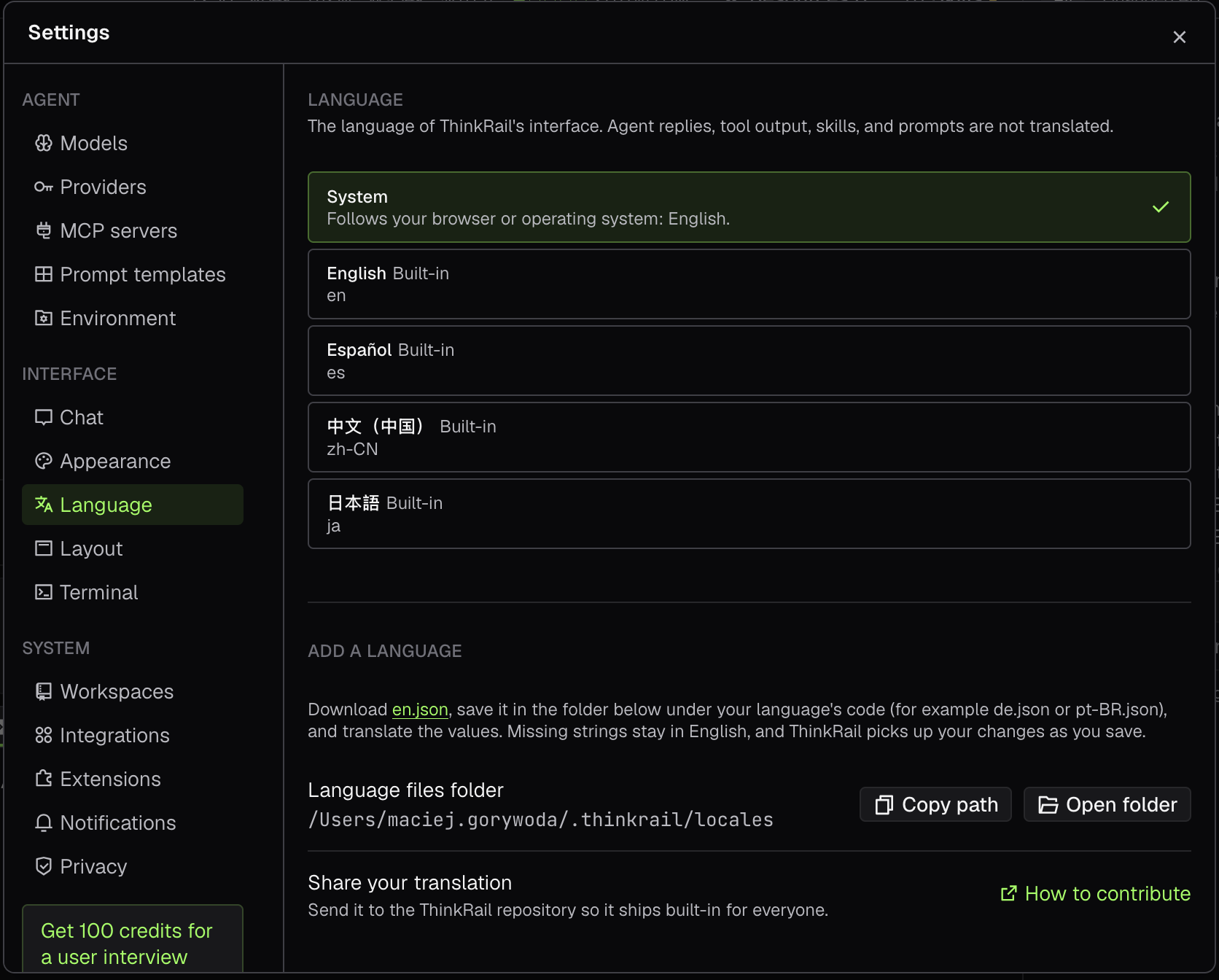
Change the interface language, or add your own translation. |
|
|
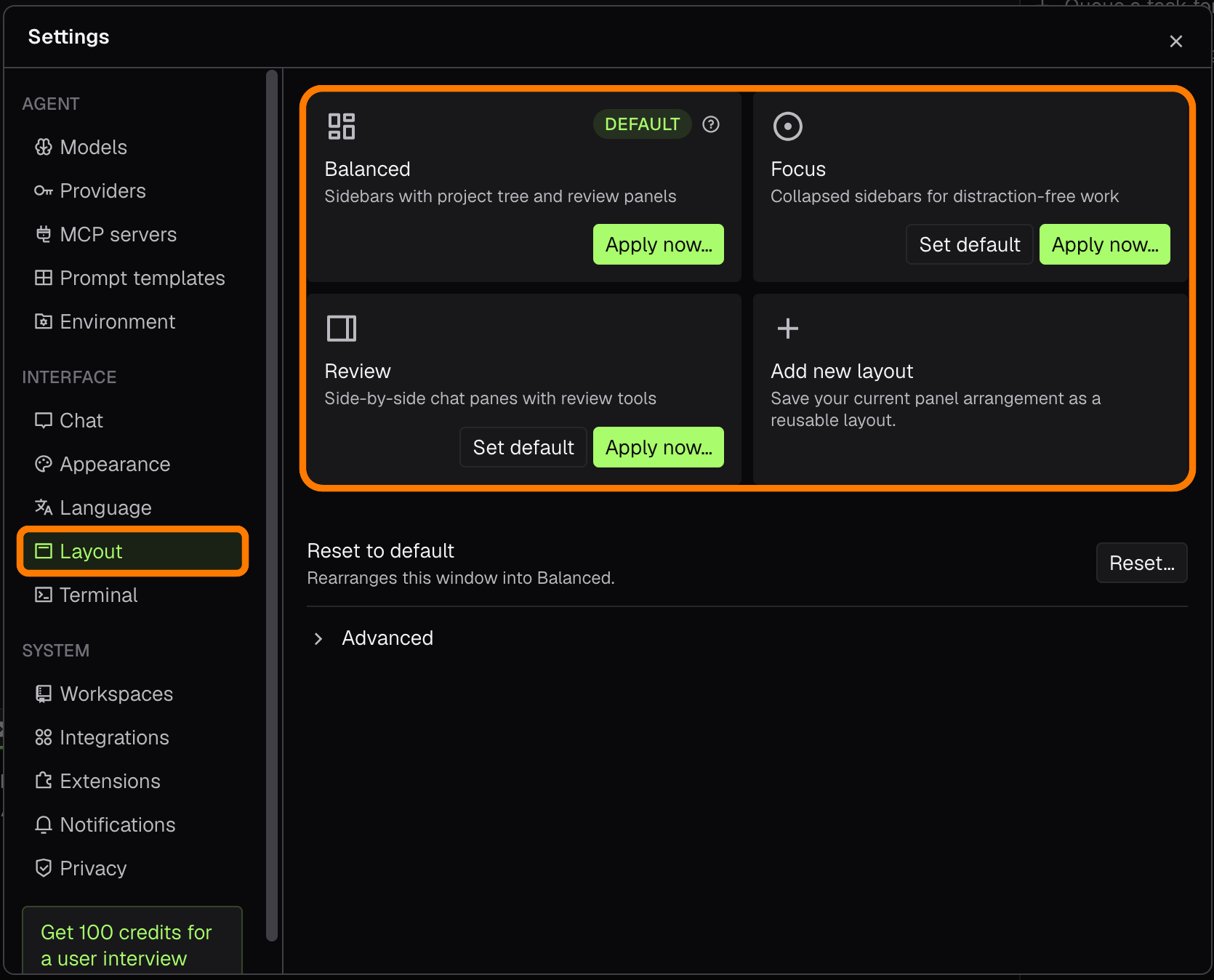
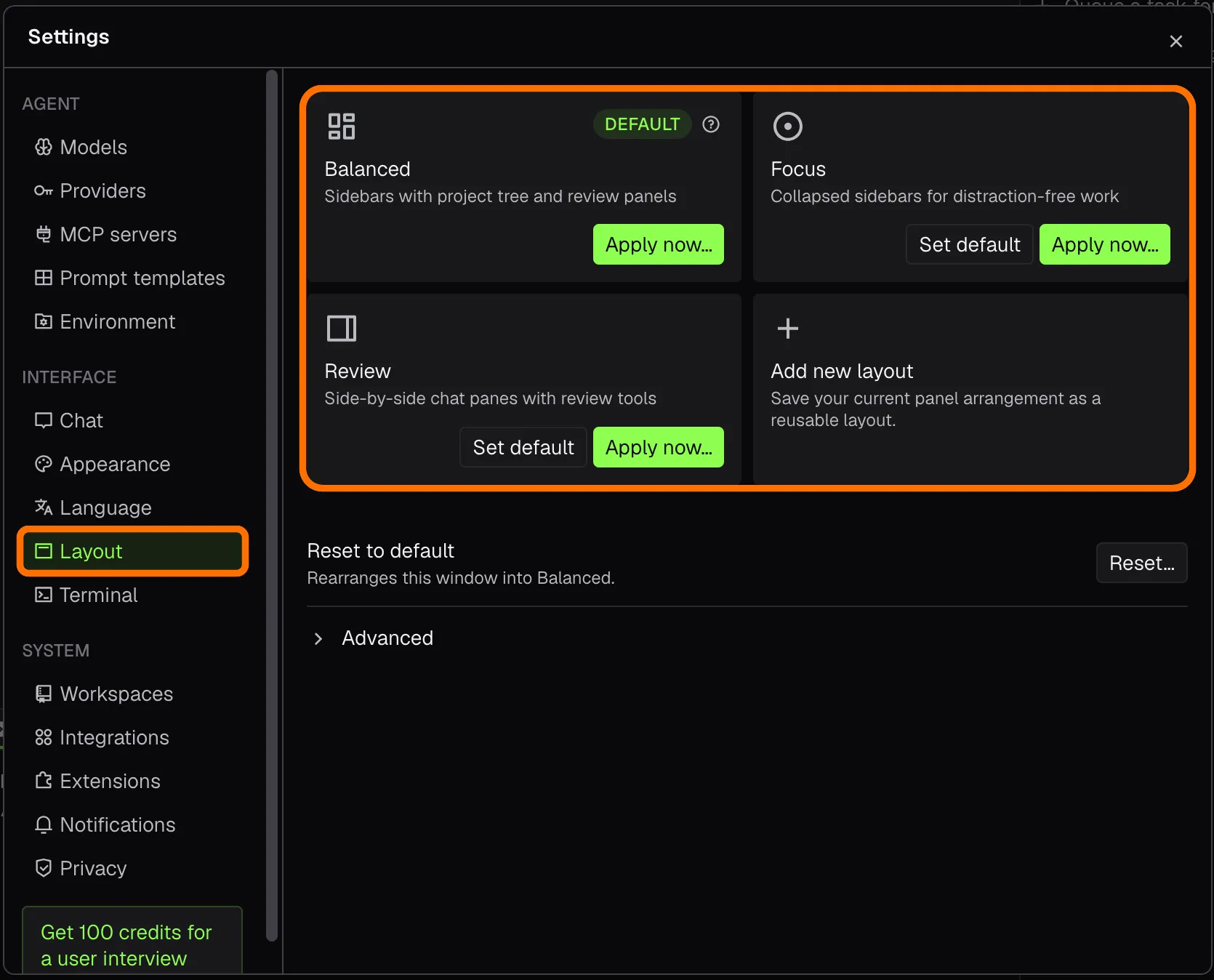
| Switch between layout presets (Balanced, Focus, Review) or save your own panel arrangement. |
 |
|
|
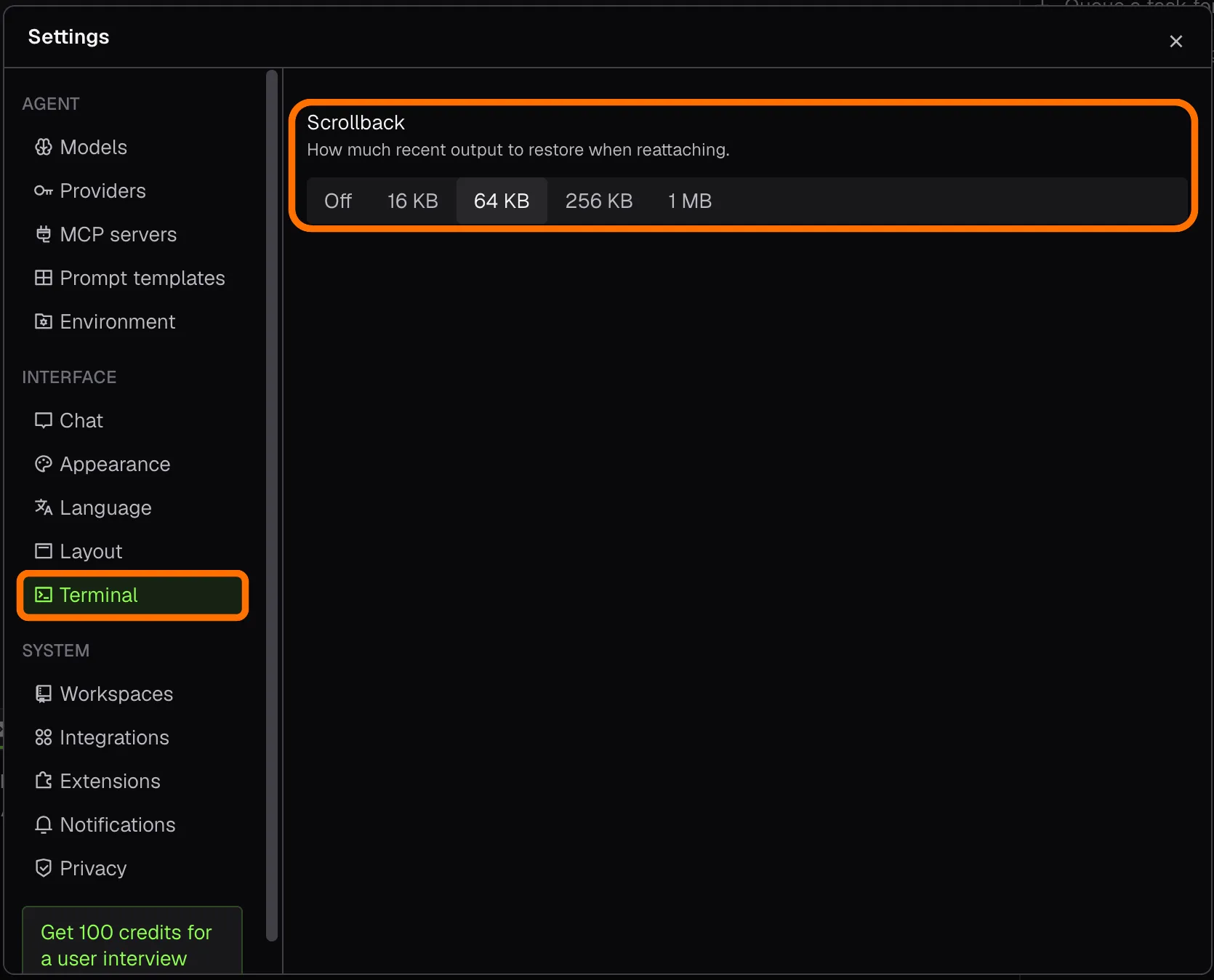 |
Choose how much terminal output to restore when you come back to a terminal. |
|
|
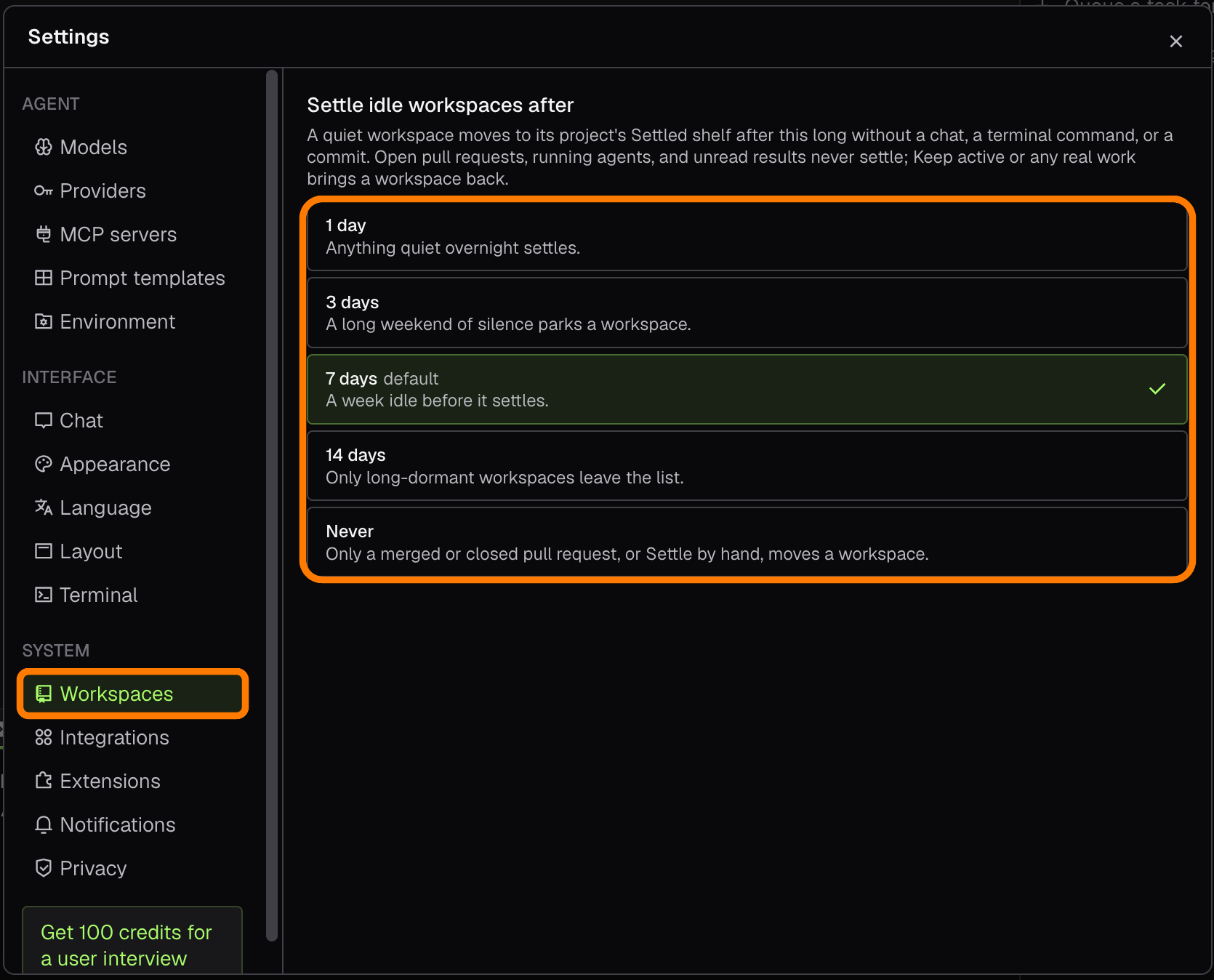
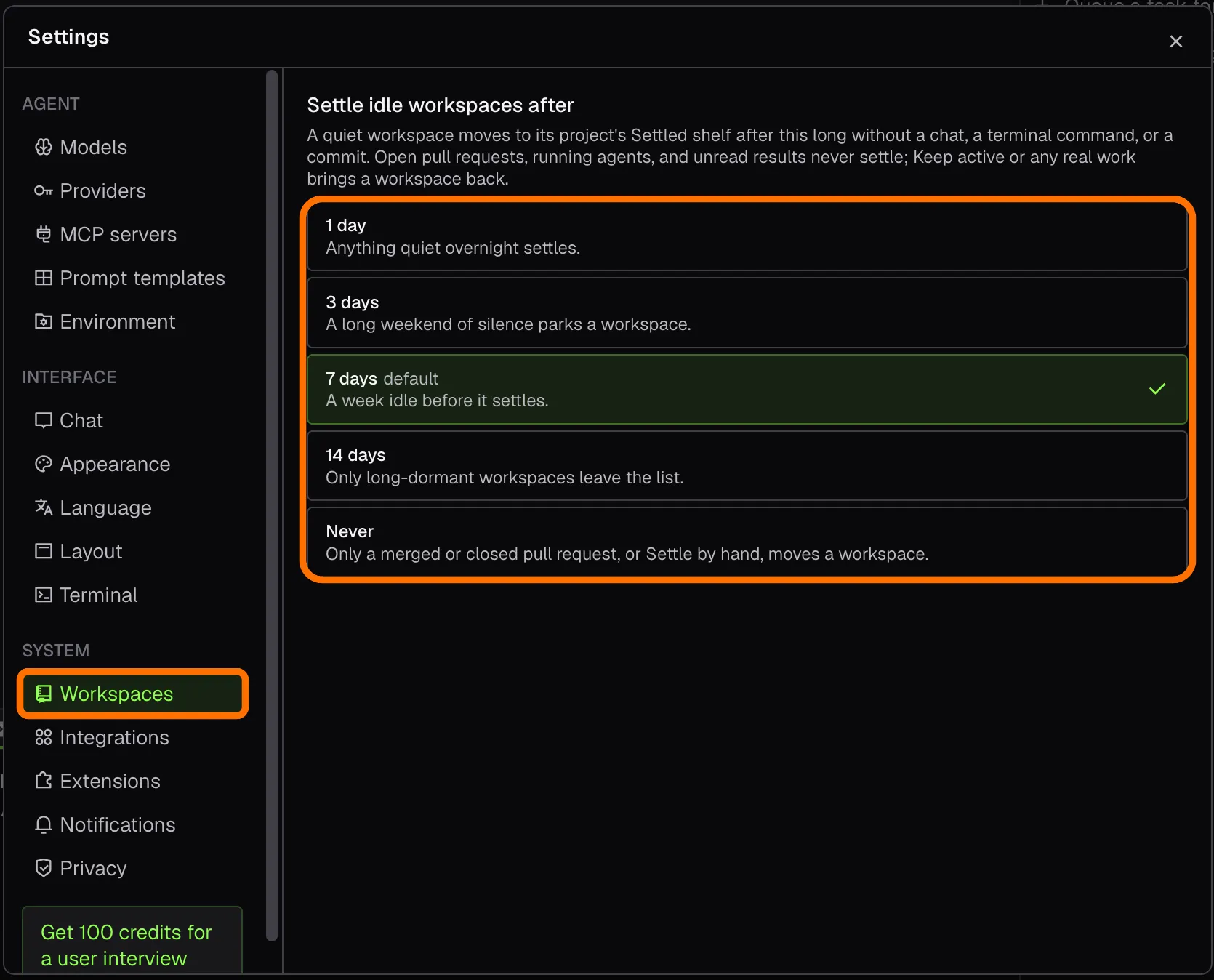
| Set the time after which an idle workspace moves to the Settled shelf. |
 |
|
|
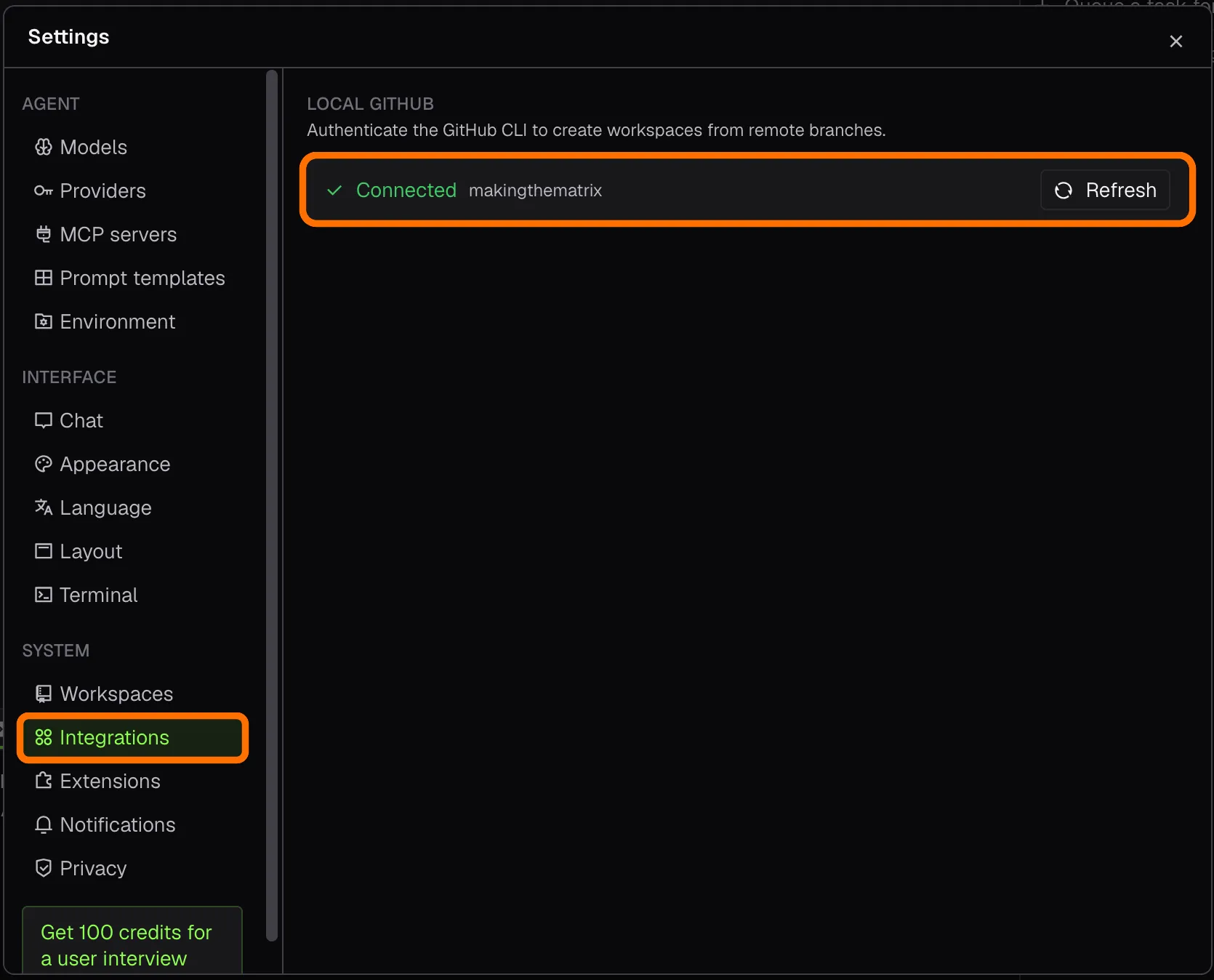 |
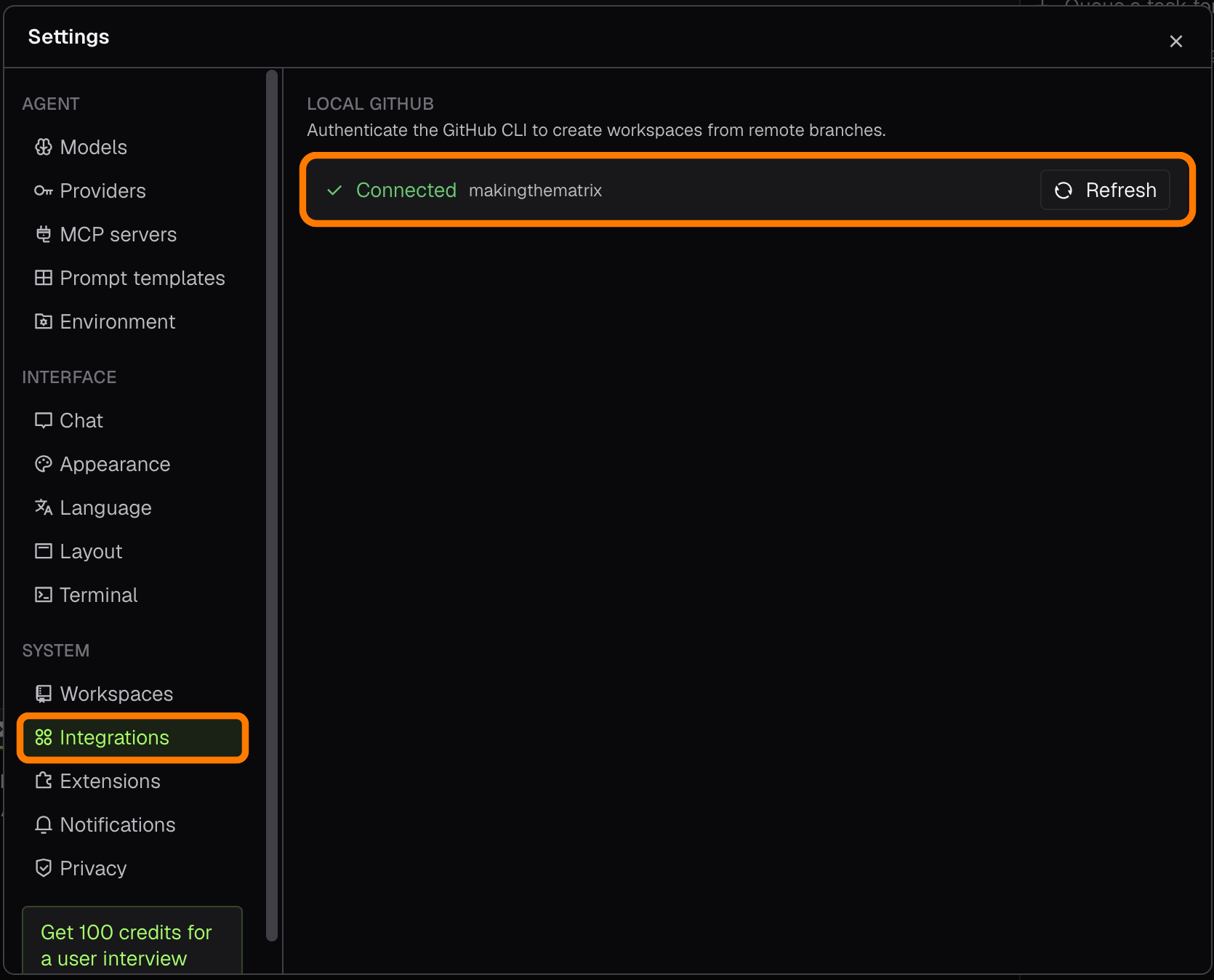
Check that the GitHub CLI is signed in, so you can create workspaces from remote branches. |
|
|
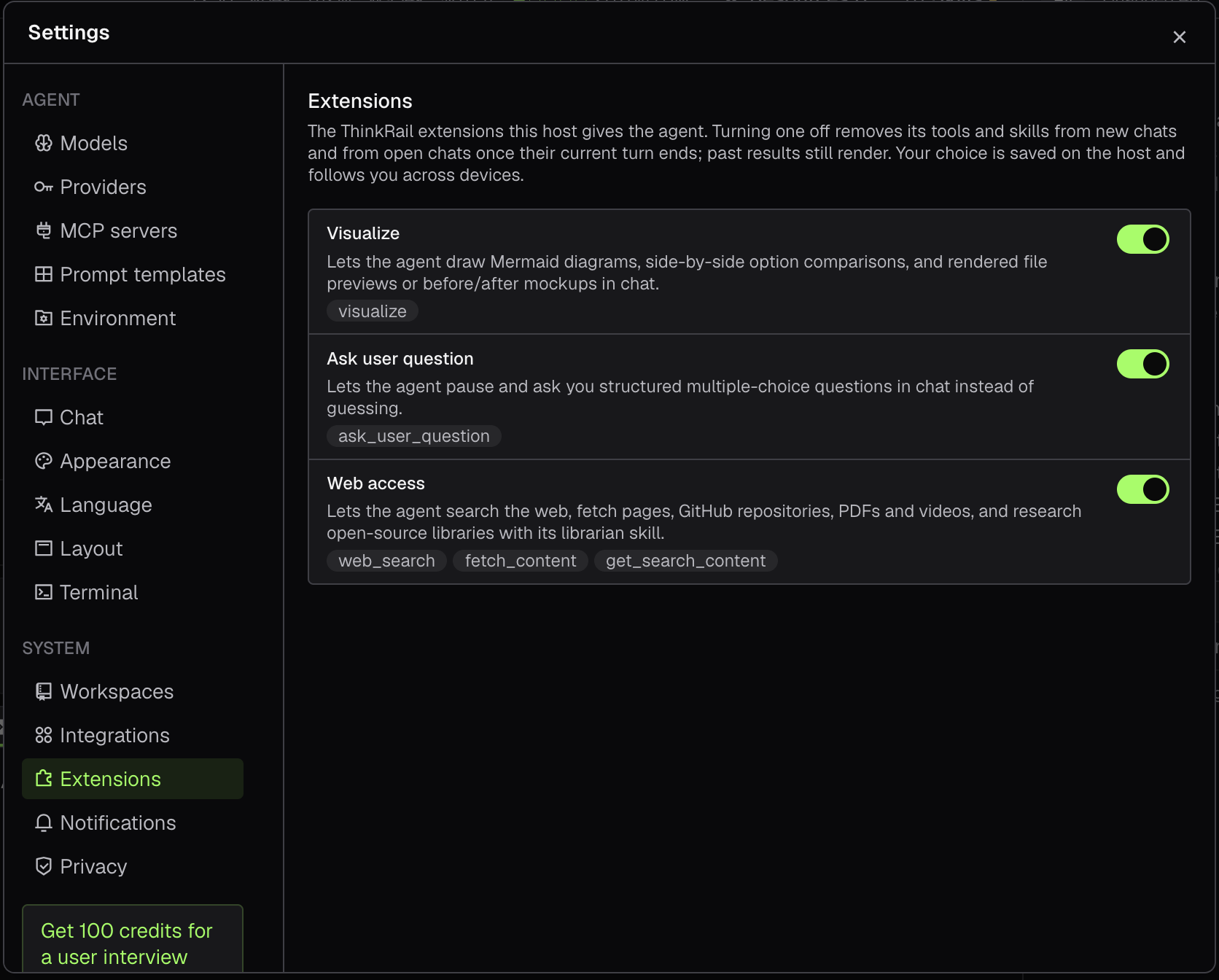
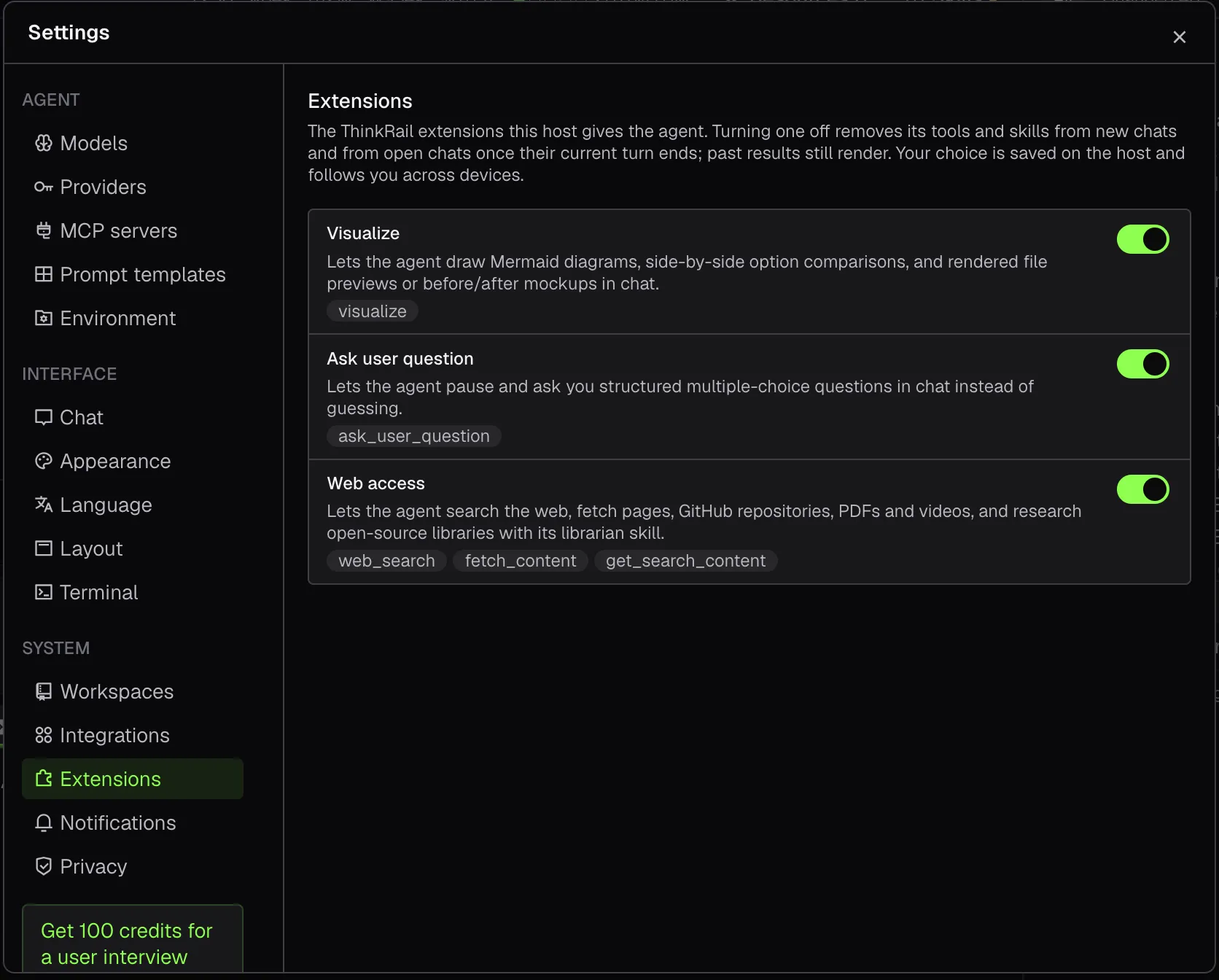
| Switch ThinkRail’s extensions on or off, such as Visualize, which lets the agent draw diagrams, comparisons, and mockups in the chat. |
 |
|
|
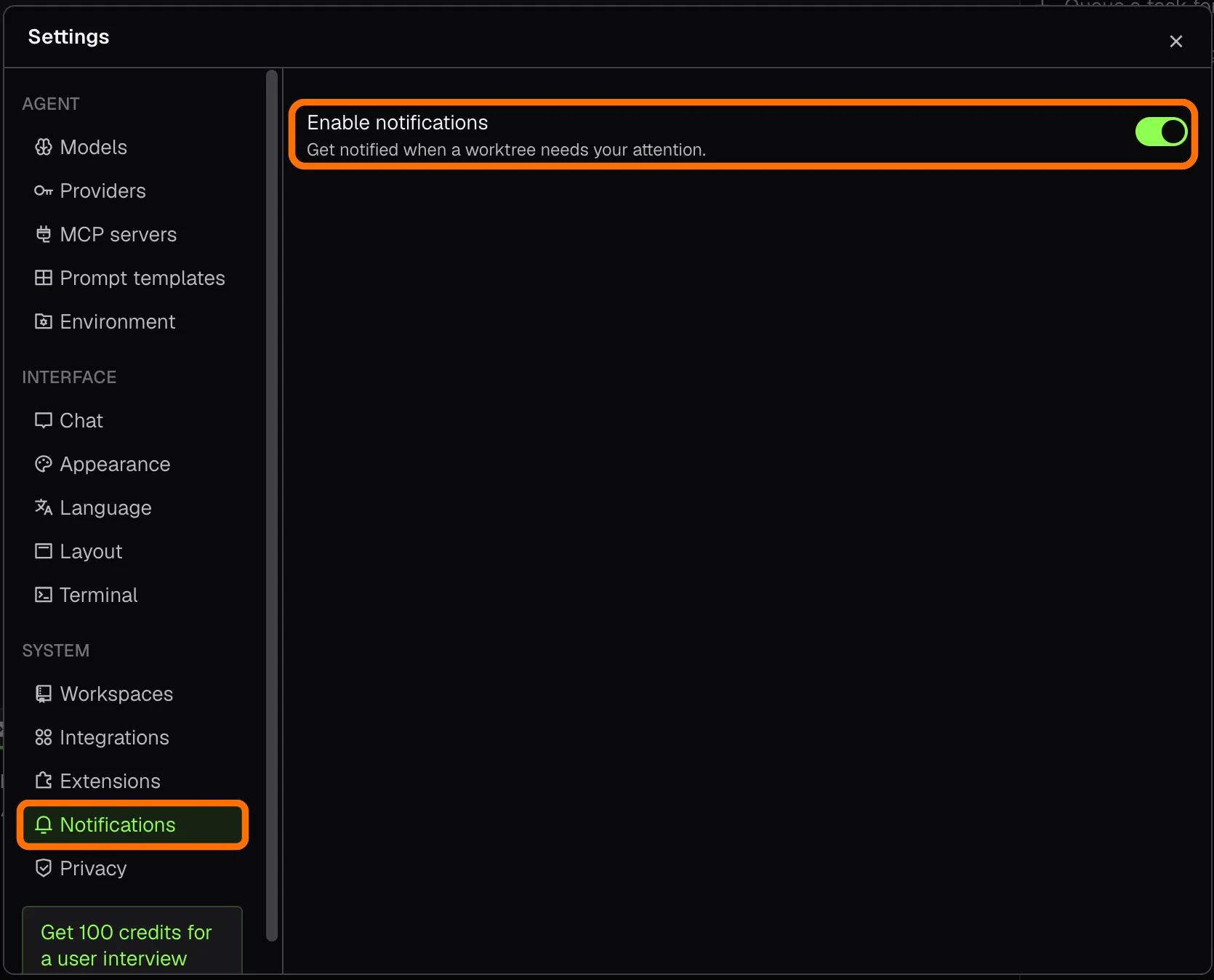 |
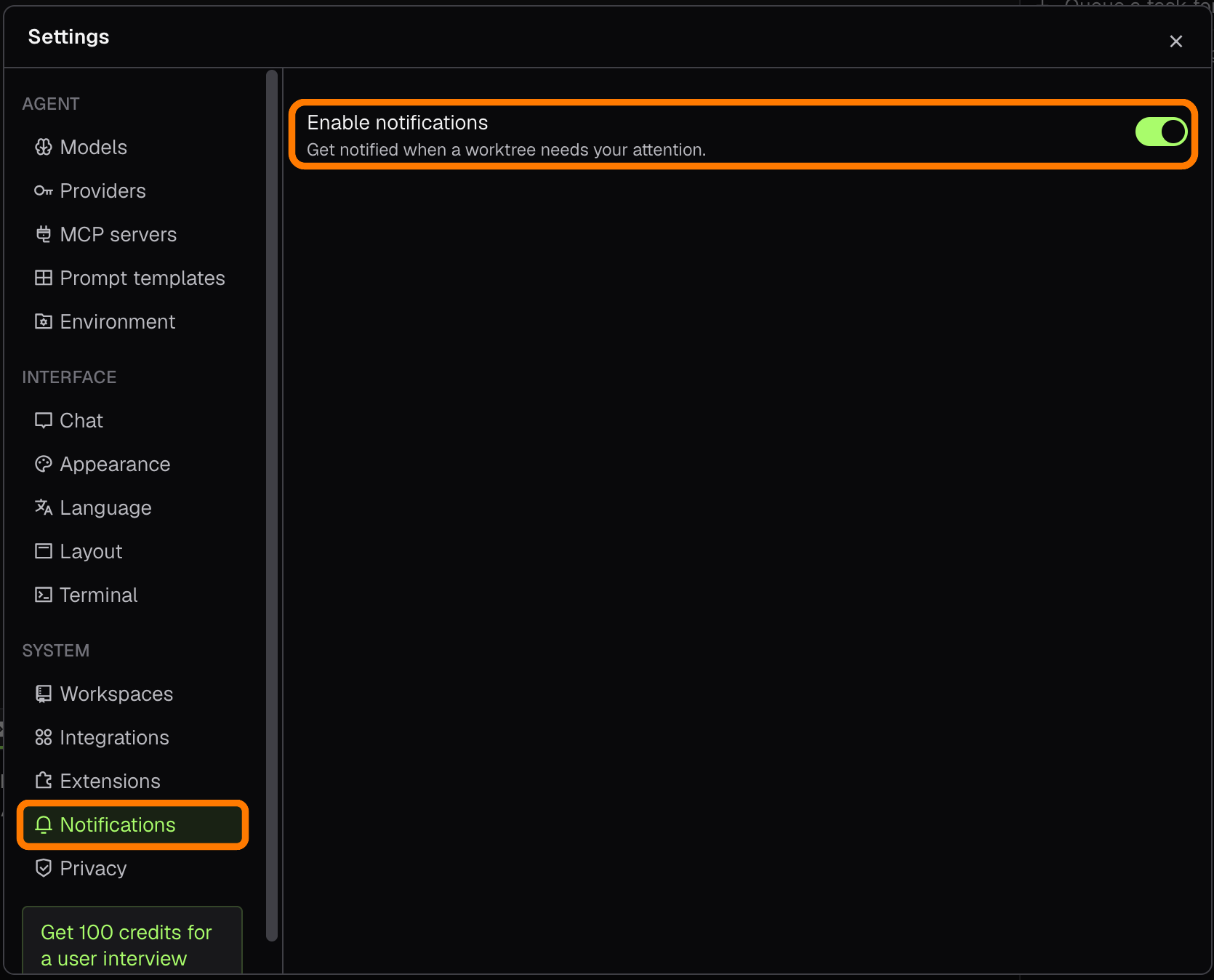
Get notified when a workspace needs your attention. |
|
|
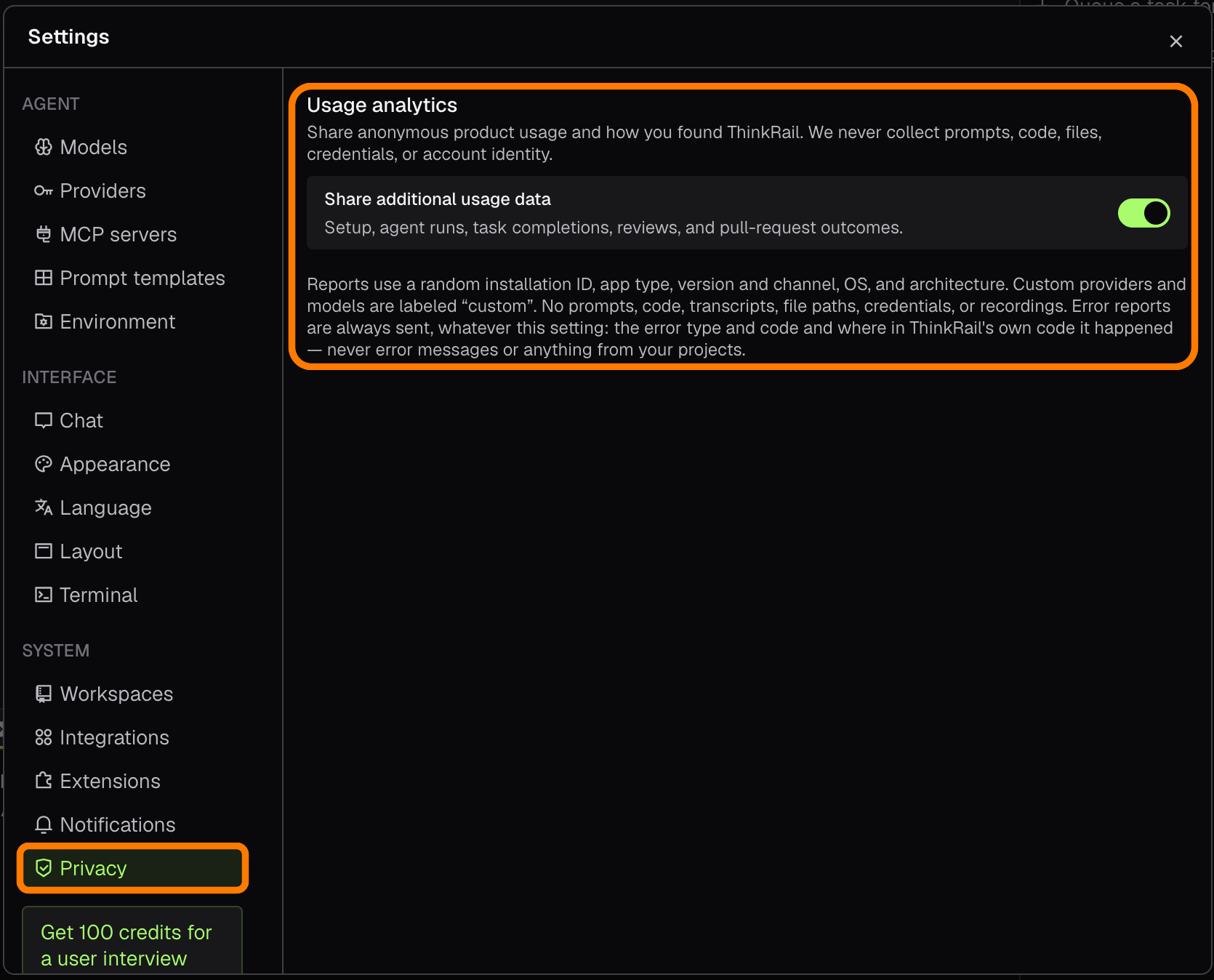
| Decide whether you want to share additional anonymous usage data with us. |
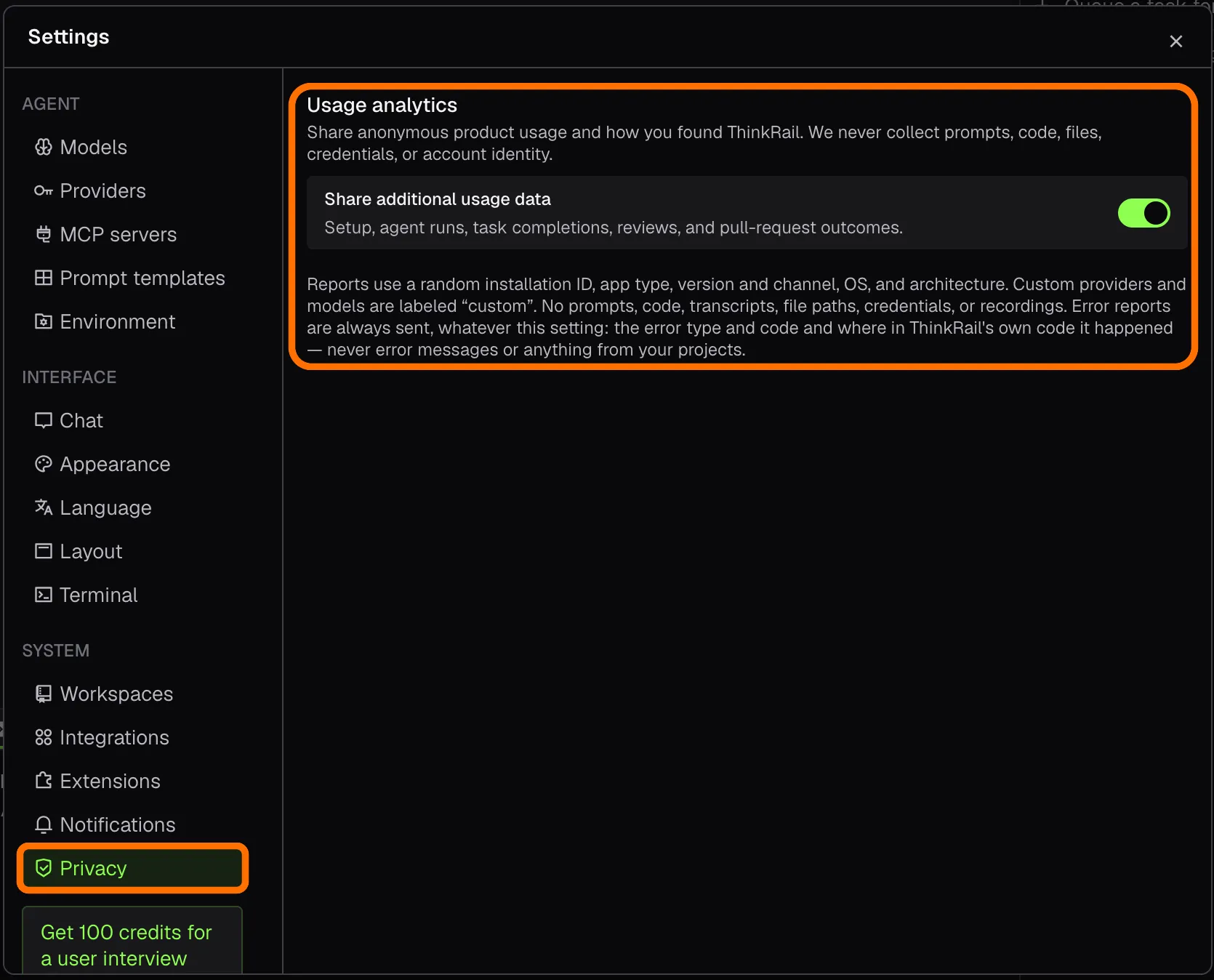 |
|
|
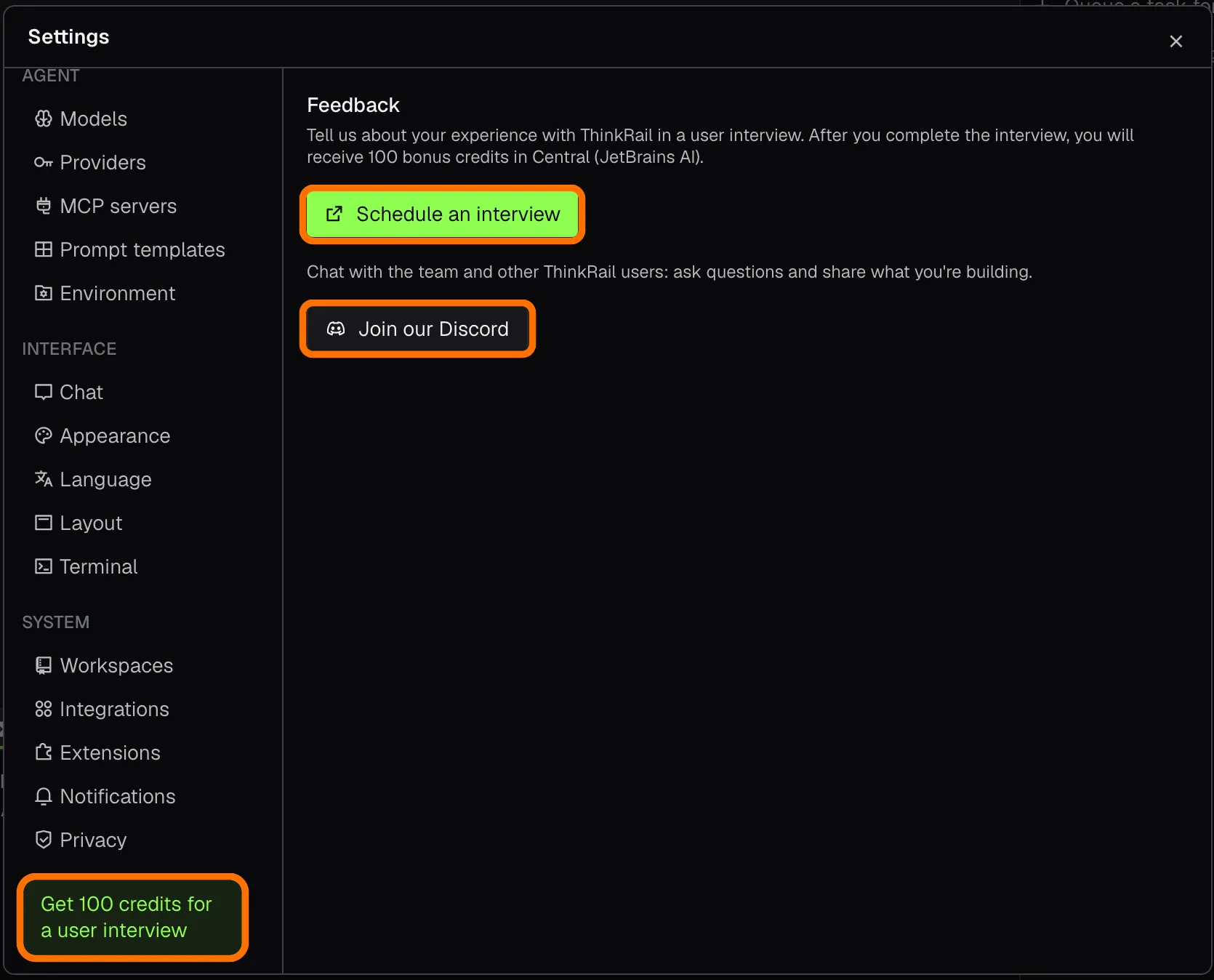 |
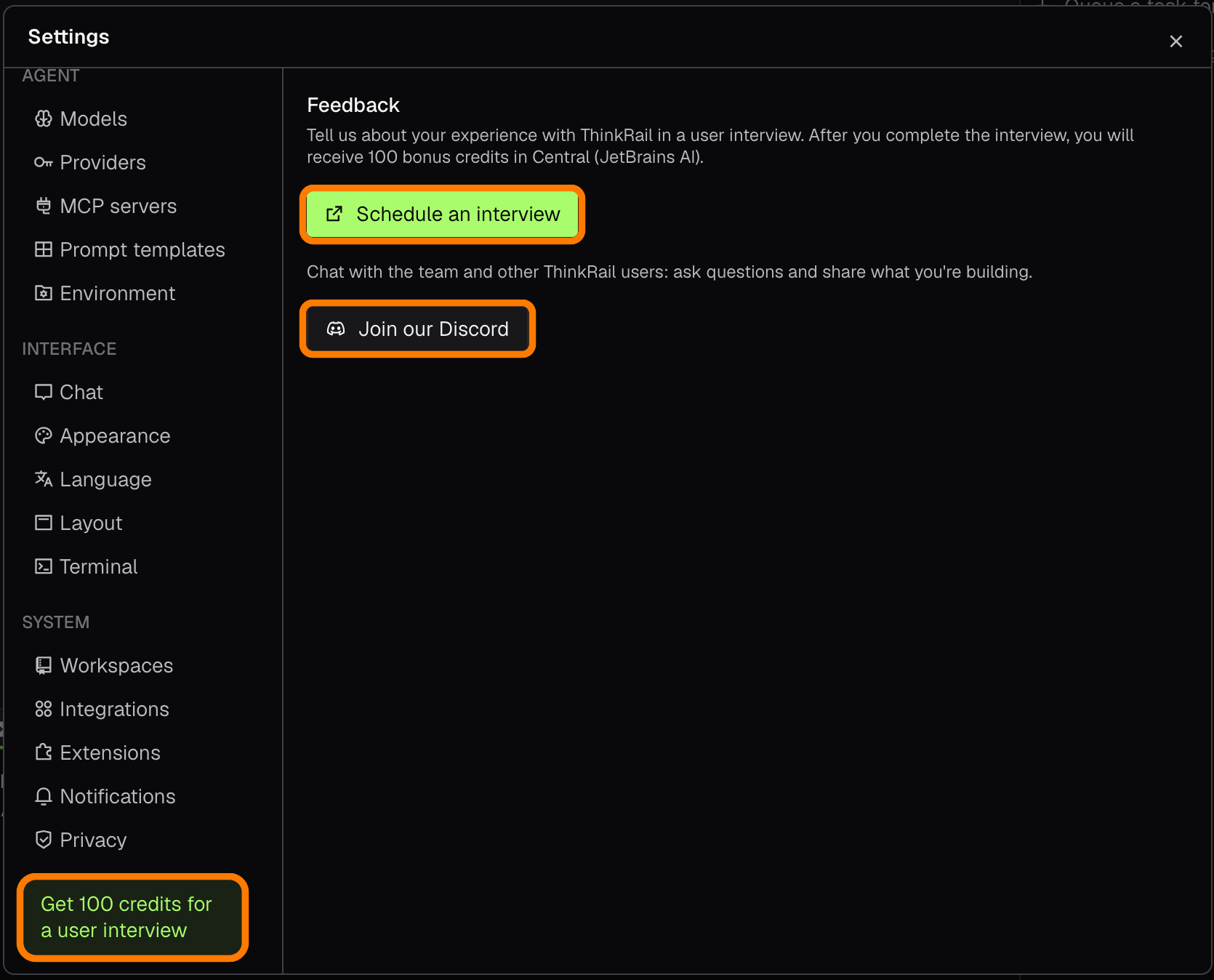
Schedule an interview, or join our Discord server, and share your thoughts with us. |
Other features, not pictured here
Some features don’t fit in a single screenshot, for example that in ThinkRail the agent asks you multiple-choice
questions in the chat instead of guessing what you want, and that it can display mockups for “before” and “after” right
in the conversation, when working on diagrams, infographics, icons, etc. There is also the Cmd/Ctrl+K key shortcut
that takes you to the chat waiting for you; the approval prompt on MCP calls that may change data; the full Plan page,
where each finished step shows its summary and verification; and the top bar actions which you can use to publish
your branch, open a pull request, and show its CI checks. The ThinkRail 0.2.0 post discusses some of those
features in more detail.
Try out ThinkRail
Grab the desktop app below, or see the rest of what ThinkRail does on our main webpage.
Find us on social media platforms: X/Twitter, YouTube, and TikTok.
You can also browse our GitHub repository,
take our survey, and join our Discord server
to say “hi!” and let us know what you think. Your feedback is greatly appreciated.
Happy developing!
ThinkRail is backed by JetBrains, leveraging their expertise in building developer tools that are both powerful and intuitive.